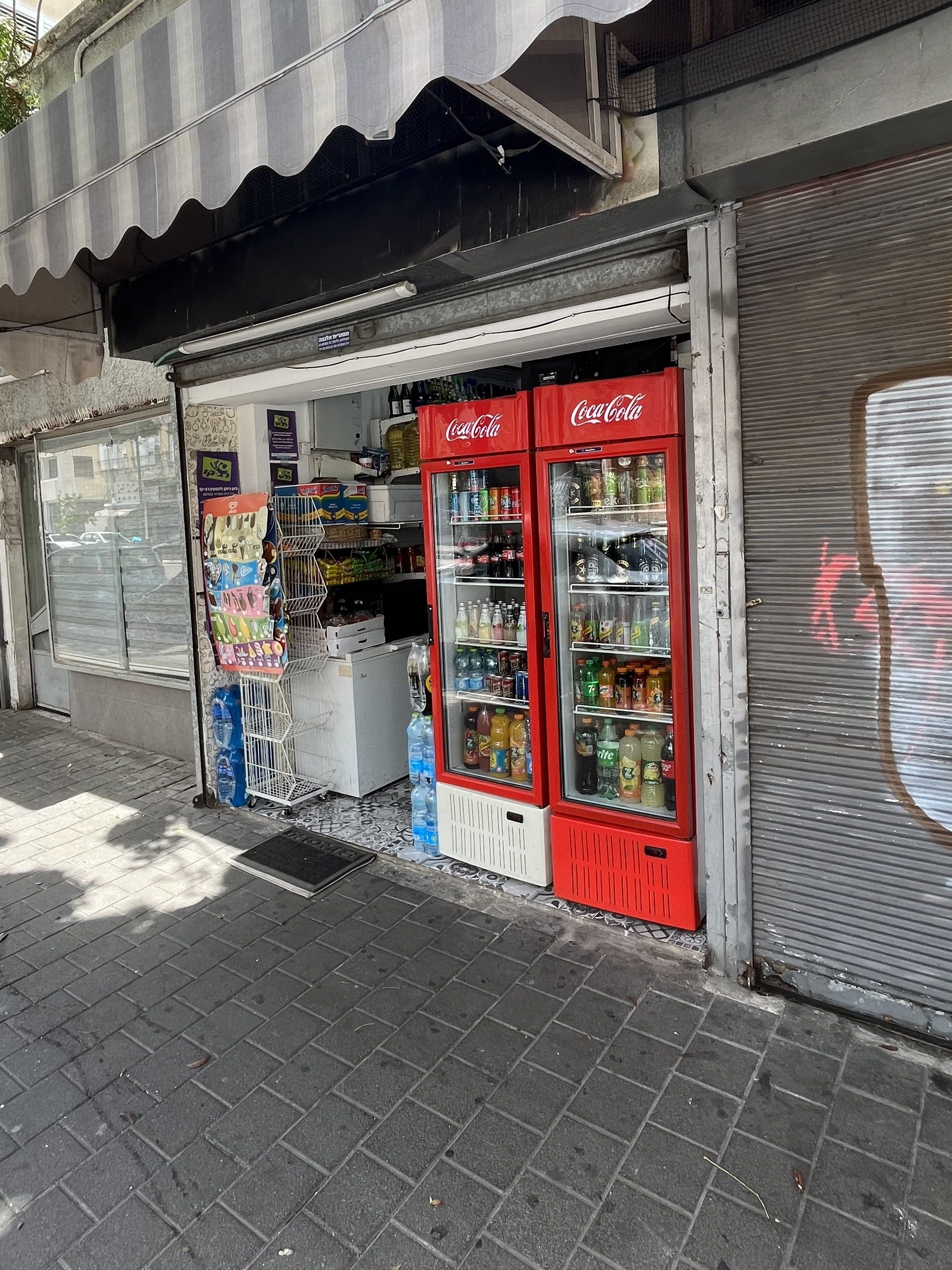
I helped the owner of a kiosk get on the map.
May 2023
Services Completed
- Where do you see your business in 5 years? – First I met with the owner to understand the marketing needs and business goals
- Filled out the Google Business page questionnaire, asking the owner information including Business Name, Address & Hours
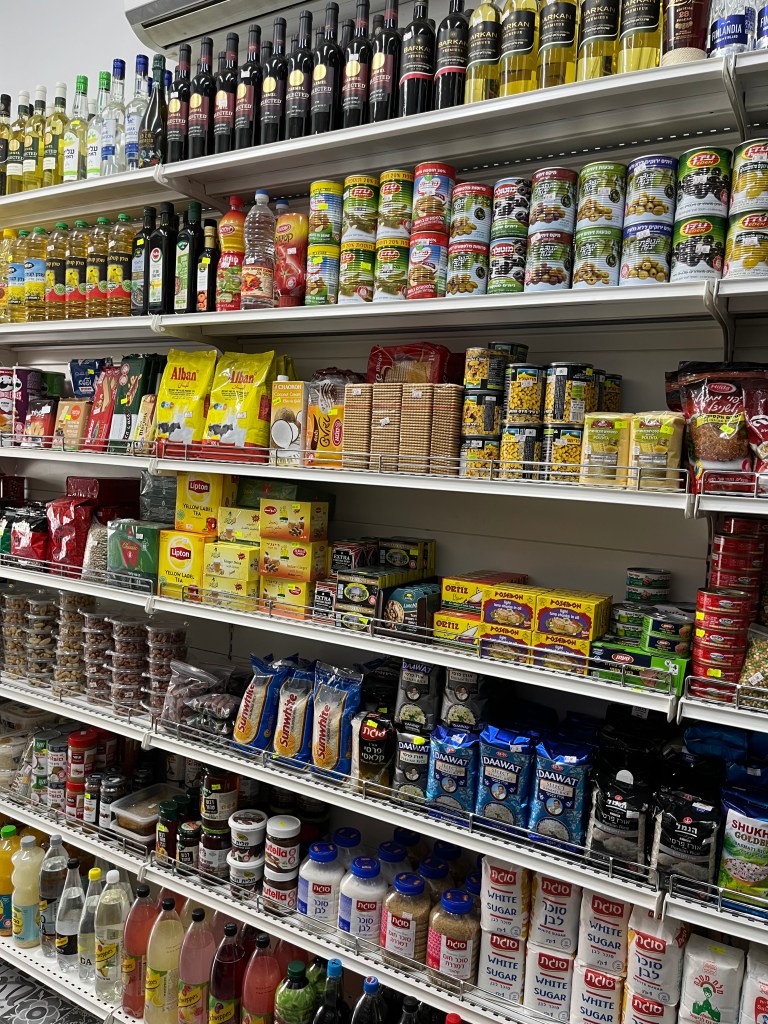
- Organized the products and shelves with the business owner
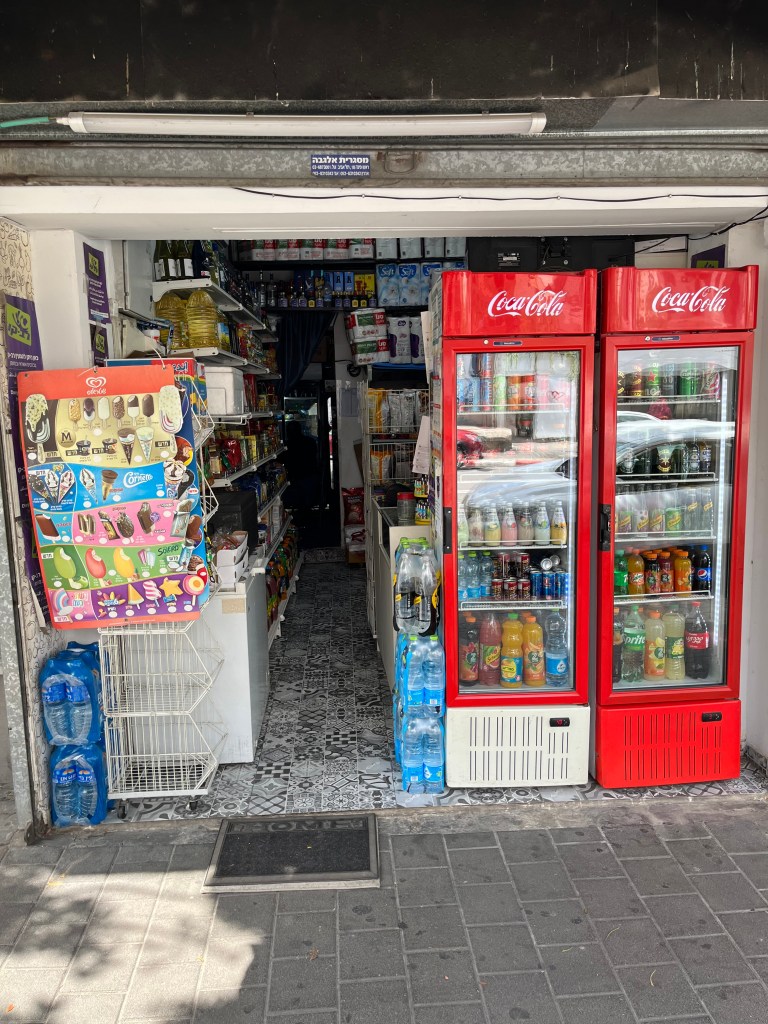
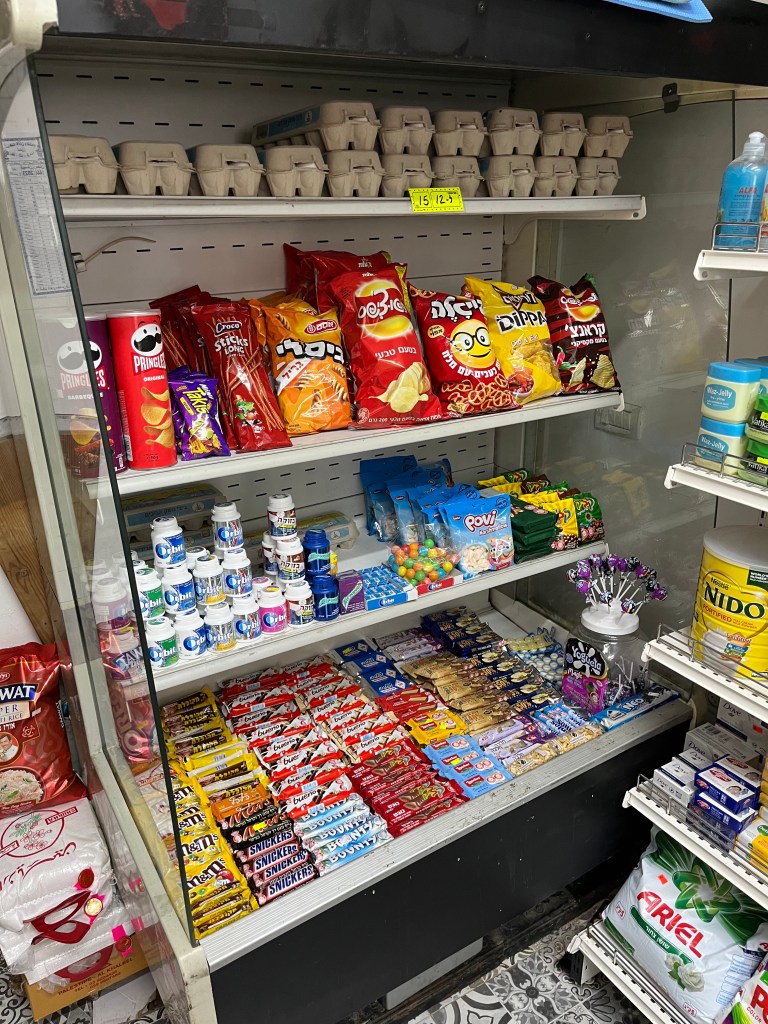
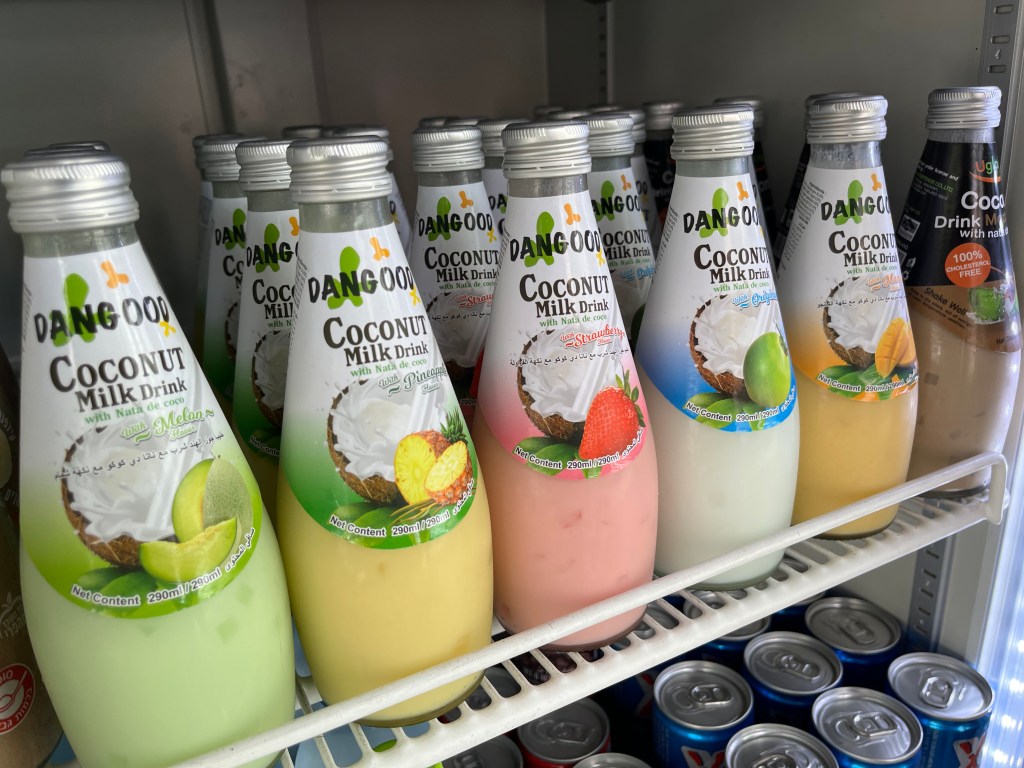
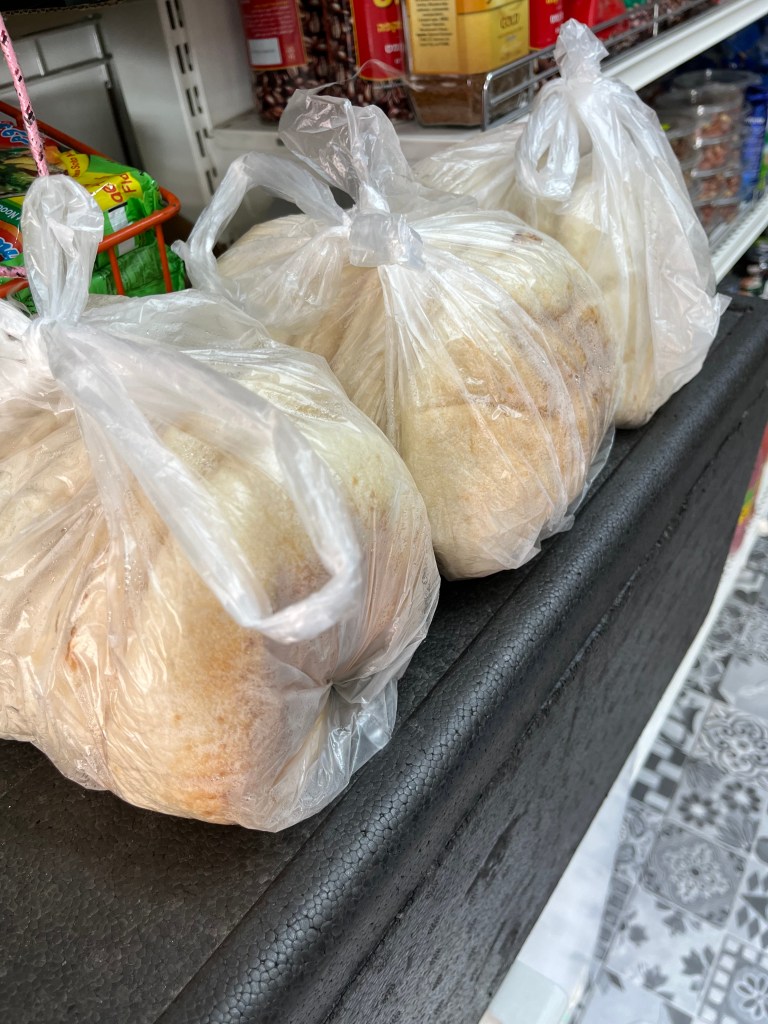
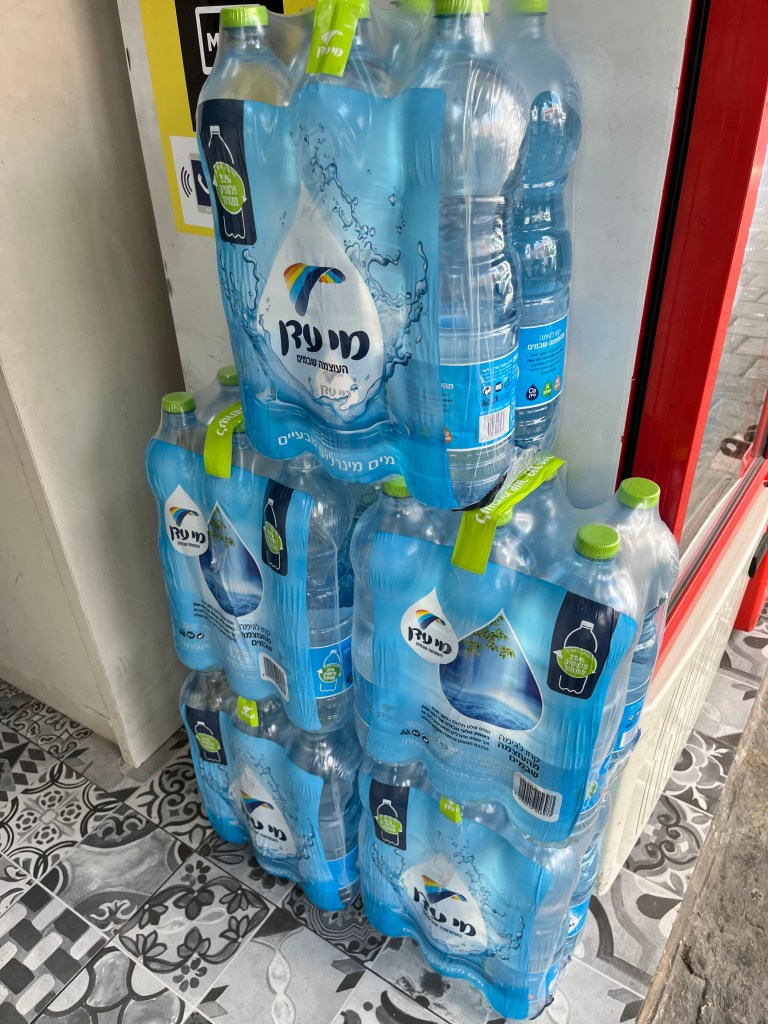
- Captured photos of the store and products and taught the owner how to take photos and upload them to Google
- Created a Google Business page including the photos and info
- Designed and marketed a 10% of coupon for new customers
- Designed and installed 2 Google Review QR codes to make it easy for people to leave reviews and access the Google page
- Taught the business owner how to like and reply to reviews, view business data, and update photos and business information
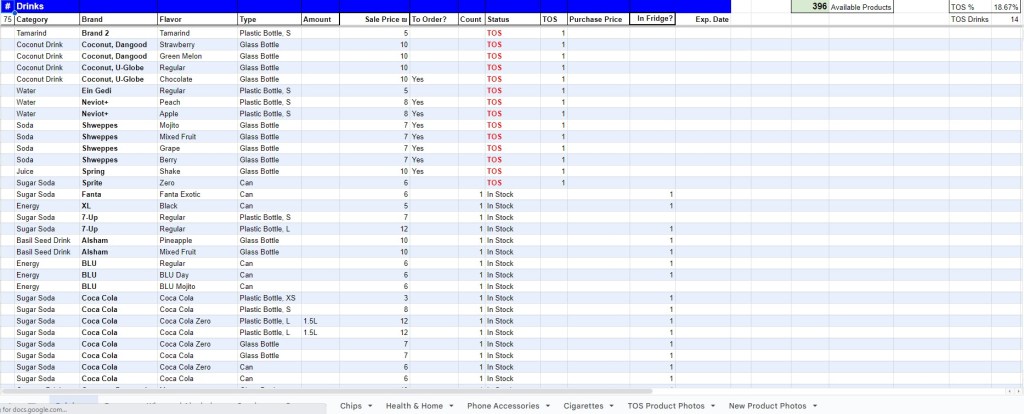
- Created a product inventory of ~400 products on Google Sheets
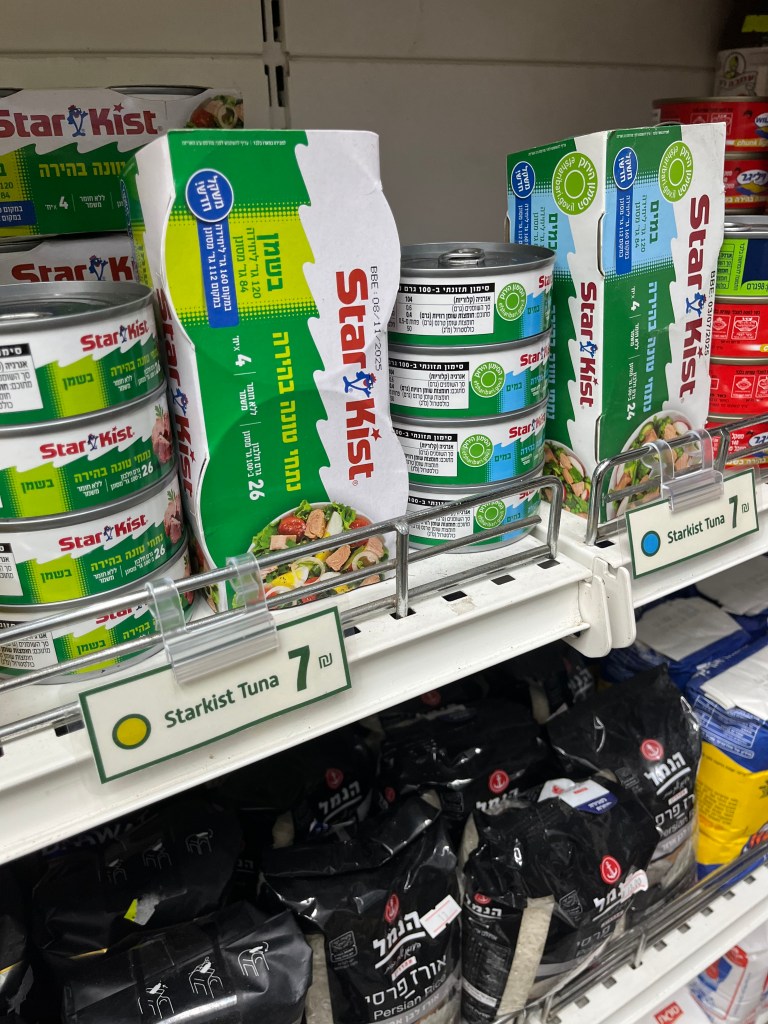
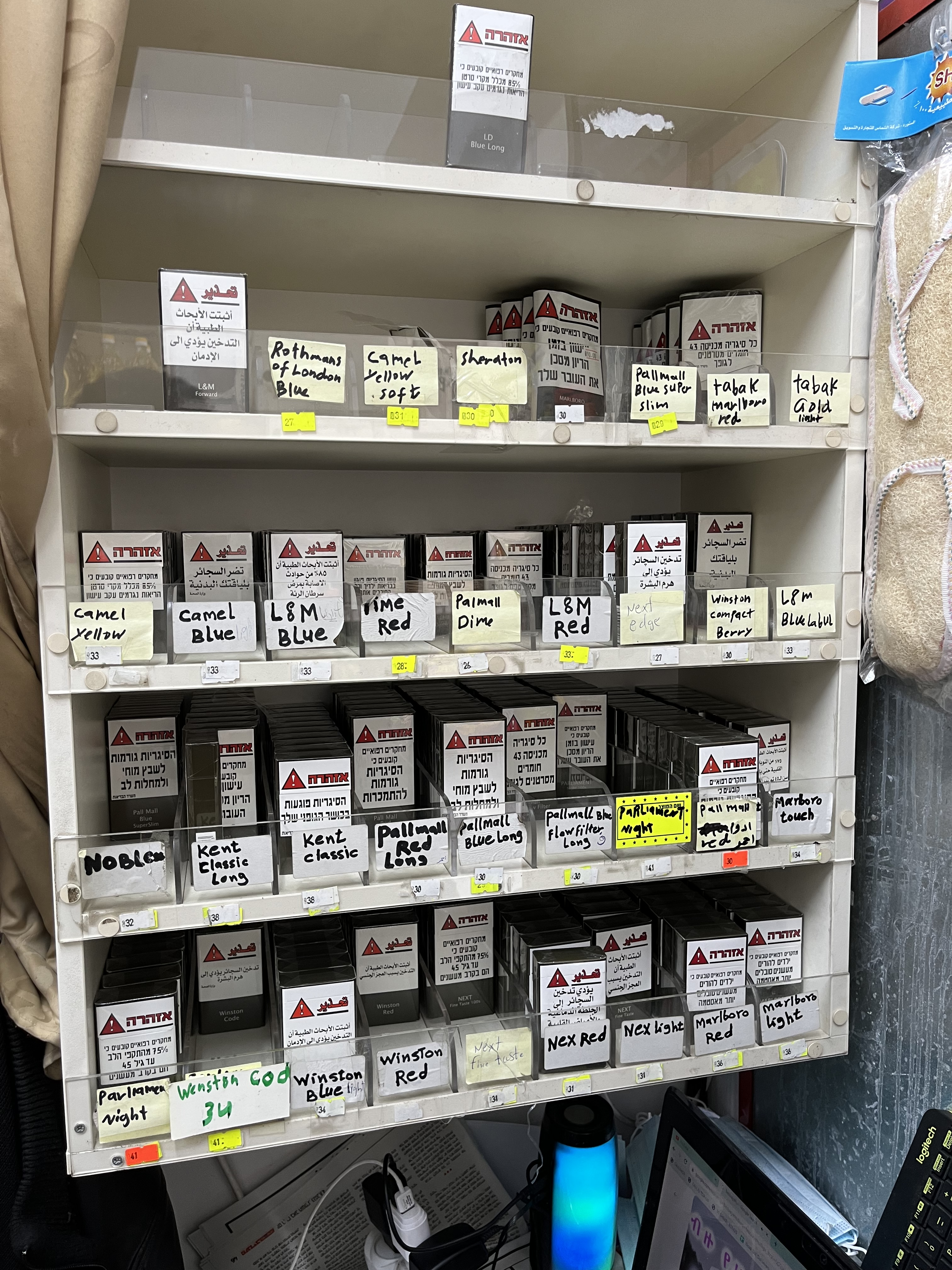
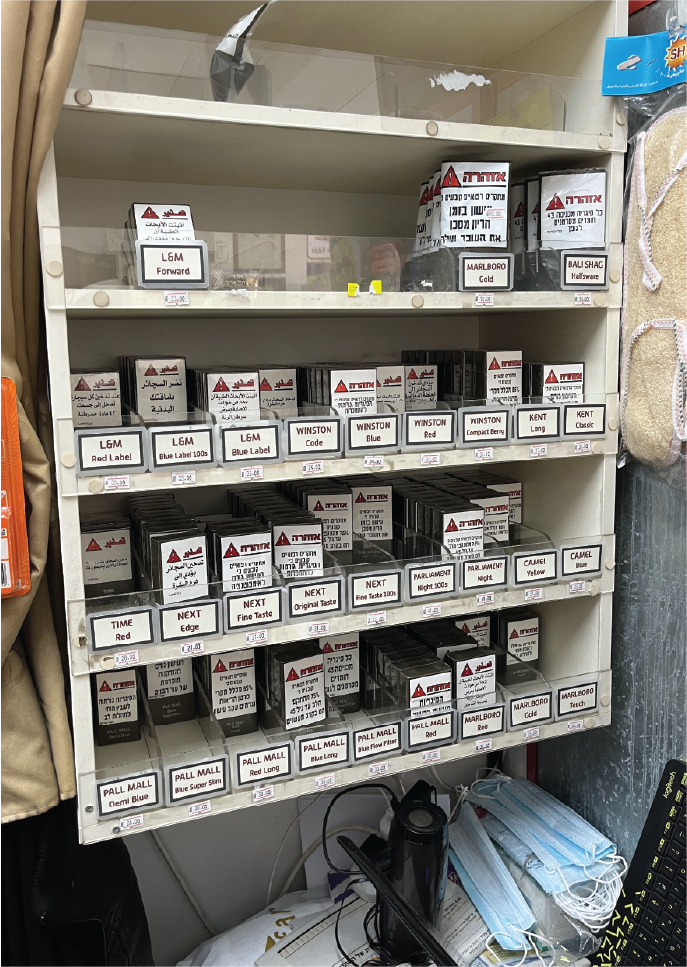
- Installed product and price labels to enhance the customer experience
Services Completed
Google Business Page Questionnaire
I asked the owner questions to learn about marketing and business goals, and to write down business information to upload to Google.

Smartphone Photography
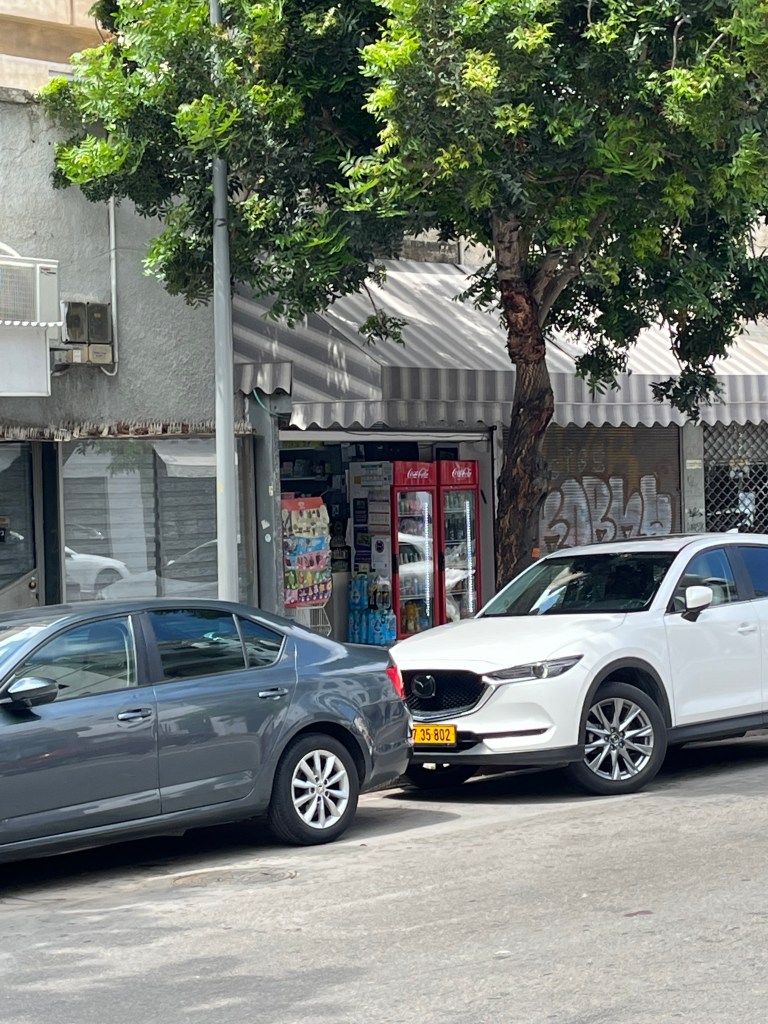
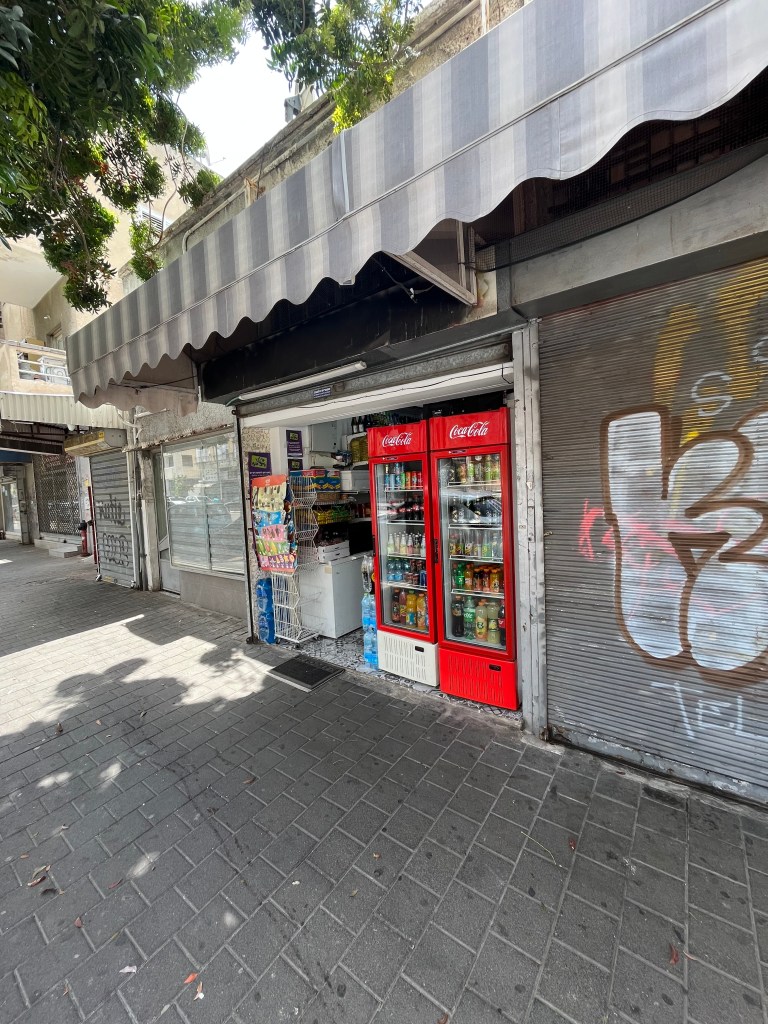
I used an iPhone 13 to take photos of the exterior, interior products and products up close in the kiosk.
Exterior

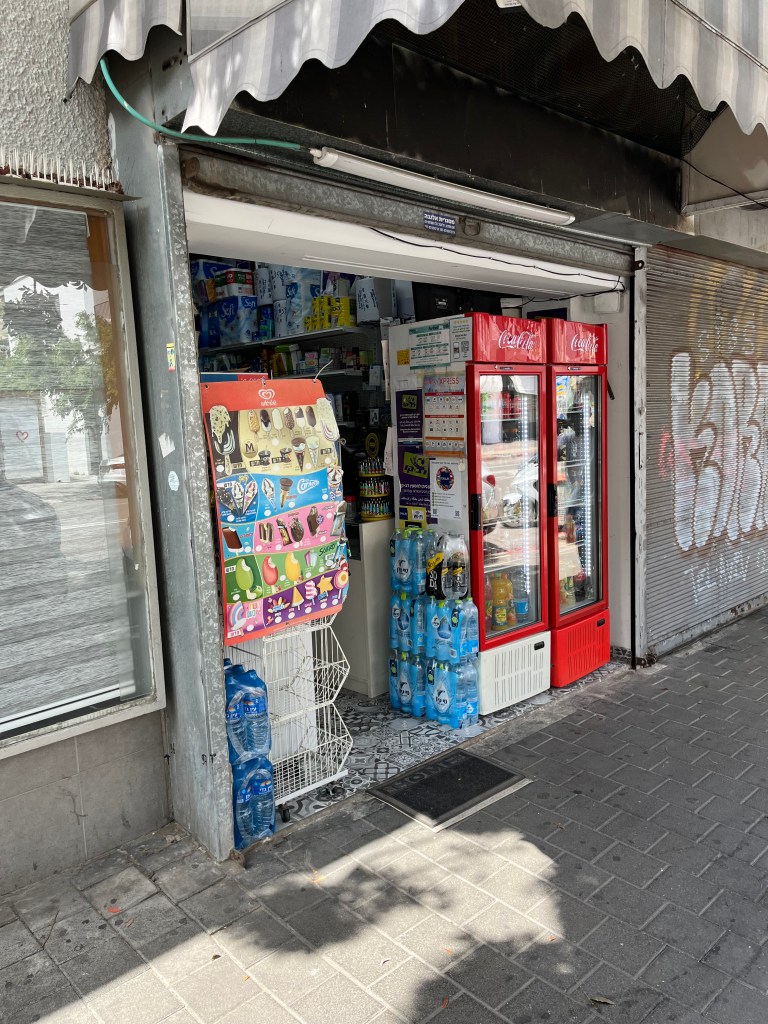

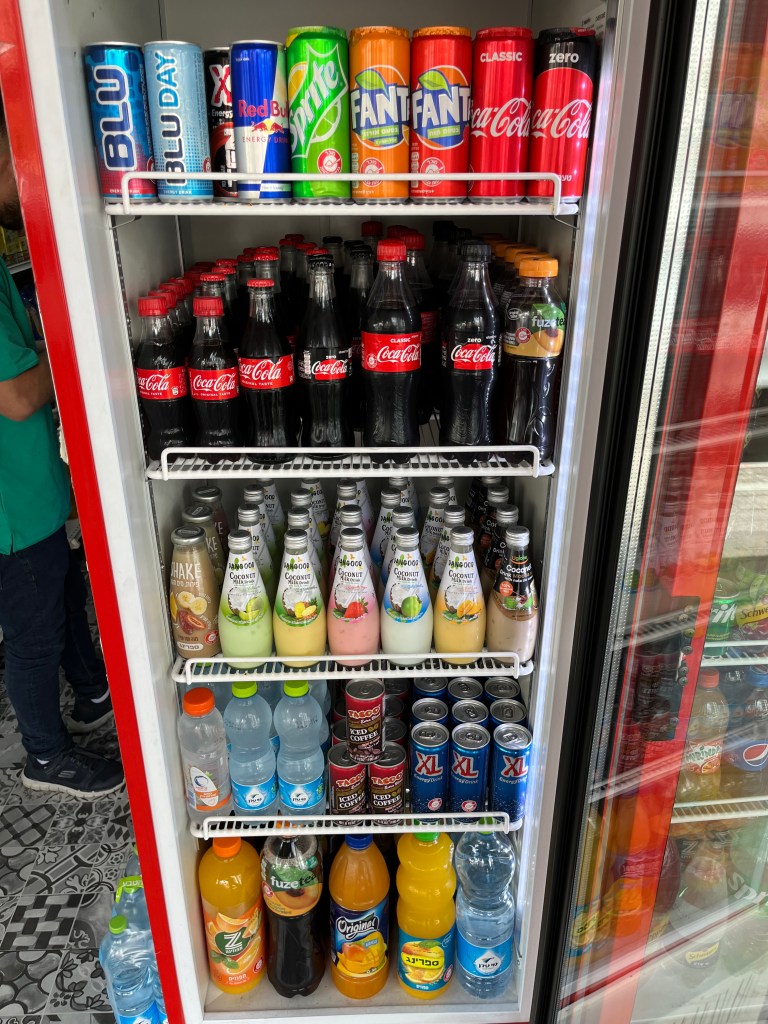
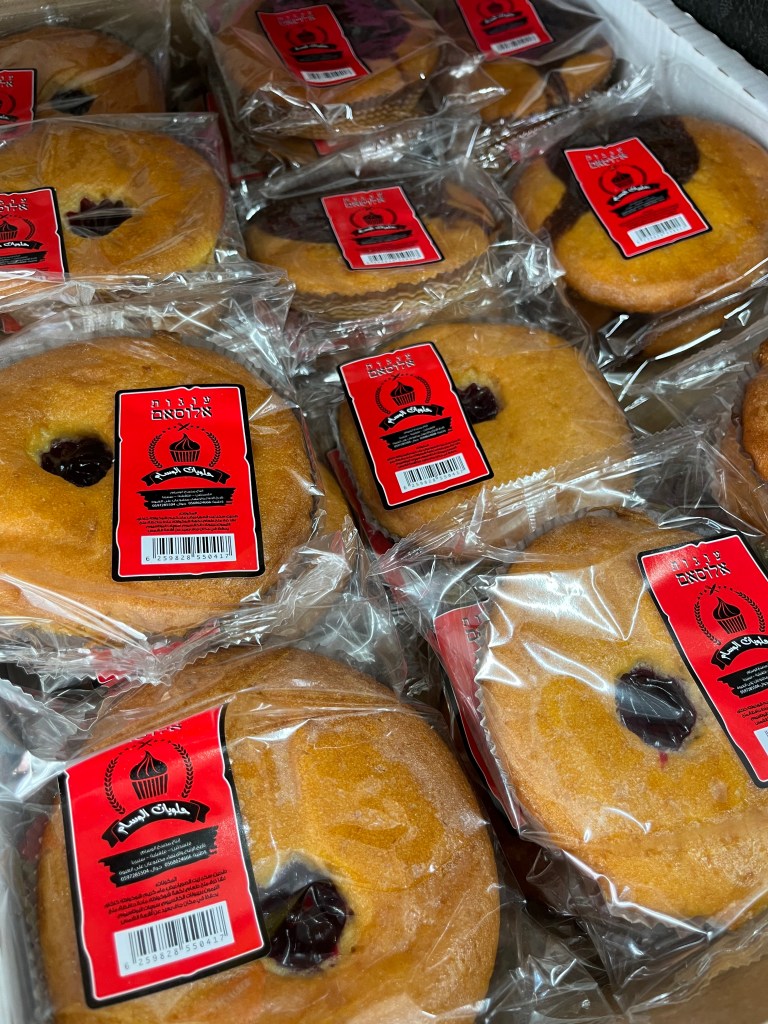
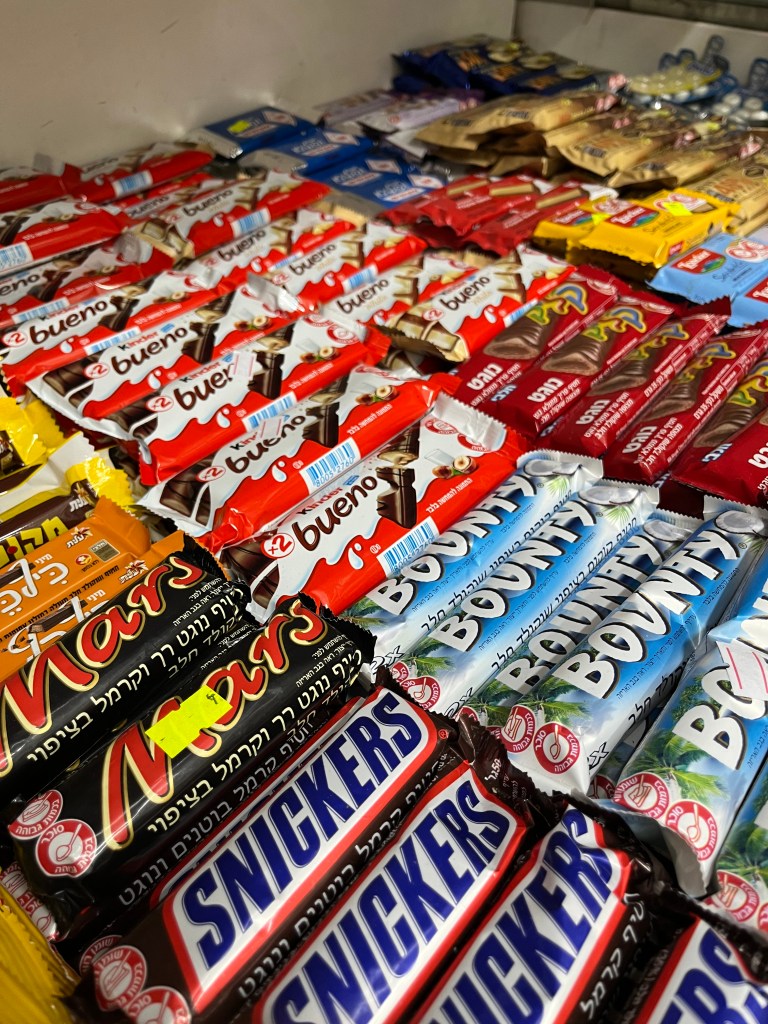
Interior products


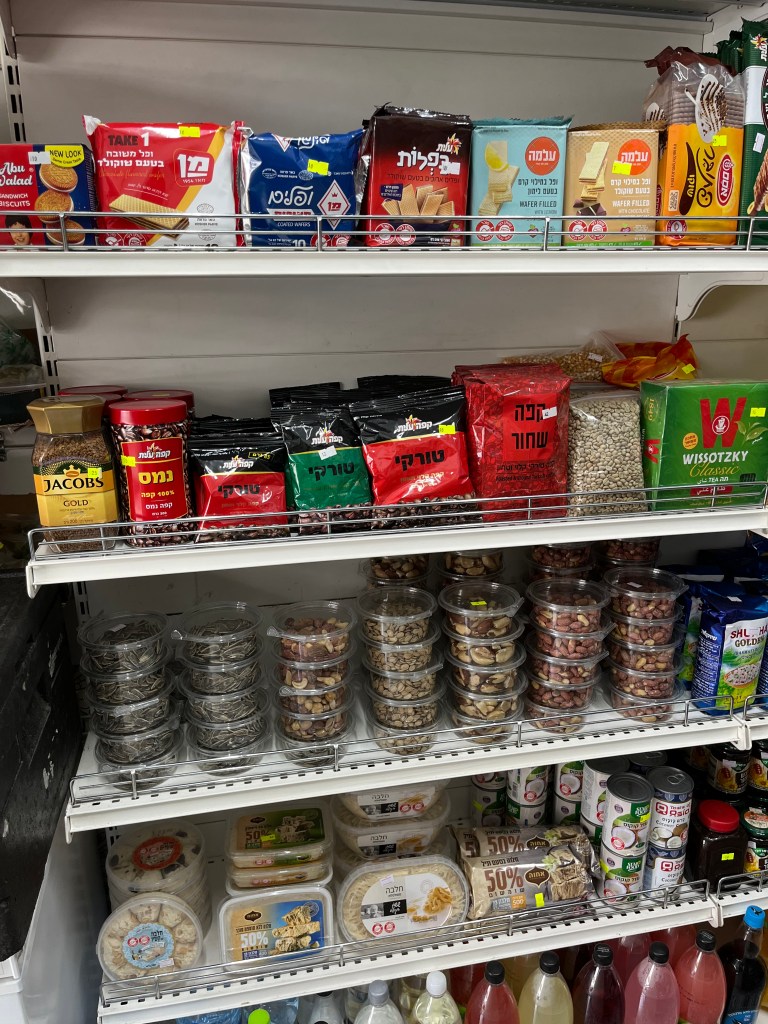
Products up close


Google Review QR code signs
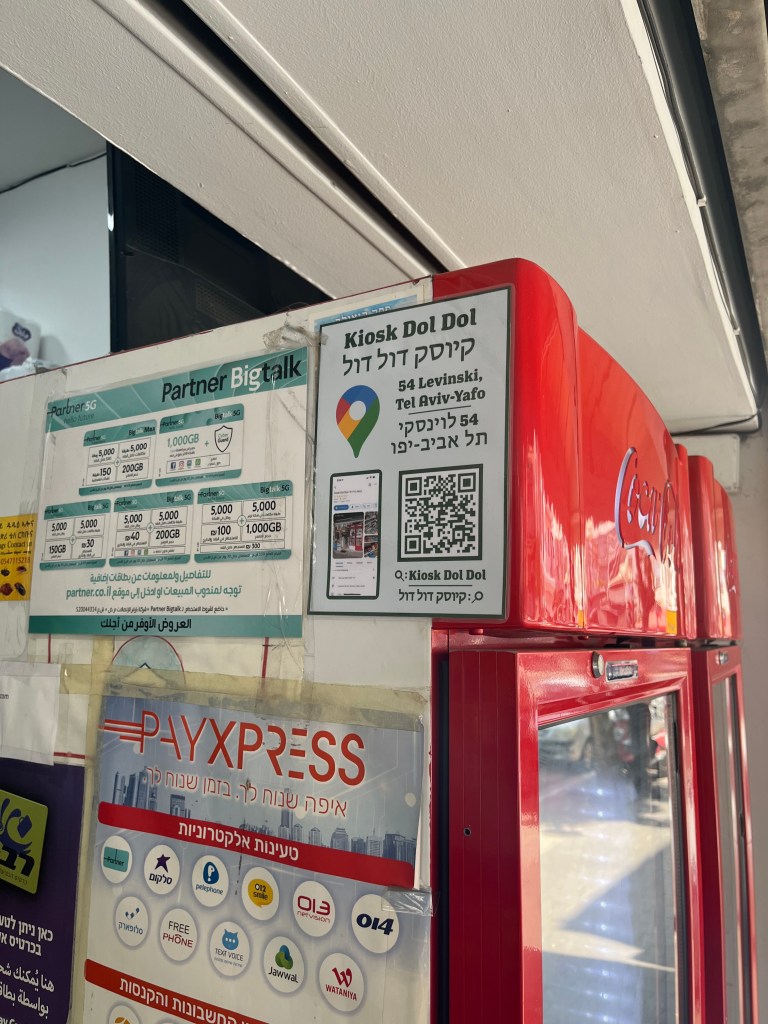
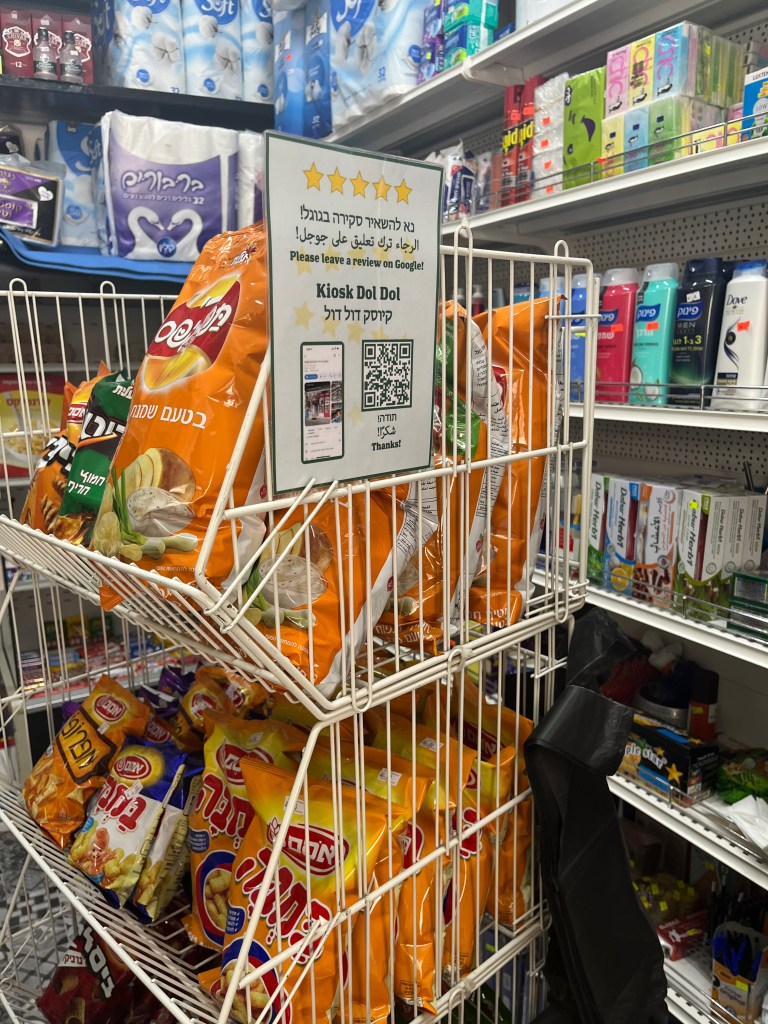
I designed Google Review QR code signs in English, Hebrew and Arabic; the primary languages spoken in this area.
The QR code signs make it easy for customers to scan the code to either a) leave a Google review or b) go to the Google Business page.
I also included the name of the business, so customers who are unable to scan QR codes can search the business name in Google Search or the Google Maps app.
I also taught the business owner how to ask customers to leave reviews.


Below are the QR code signs installed at the Kiosk.
Coupon for New Customers
I created a new customer coupon after the business owner expressed a desire to get more new customers into the store.
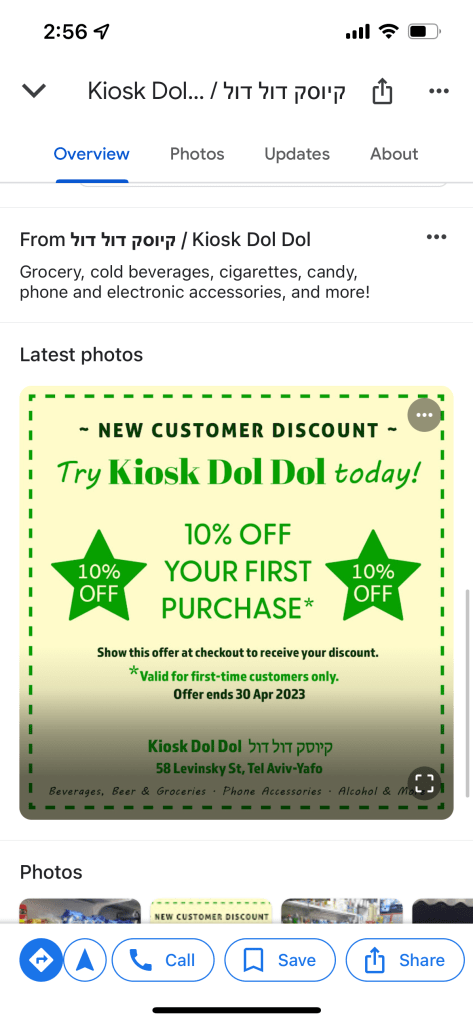
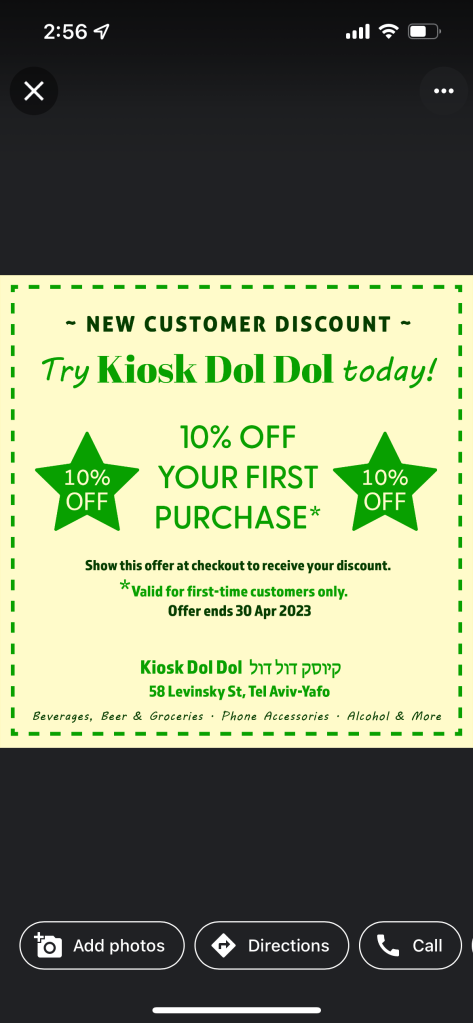
I posted the coupon to the photo section of the Google page.
Google makes it possible to post Offers, but I wanted to see if the coupon would lead to conversions if posted as a photo.
Google doesn’t let business owners see the number of views of photos they posted, so I wanted to put the coupon in the Photos section to see if people were viewing the photos.
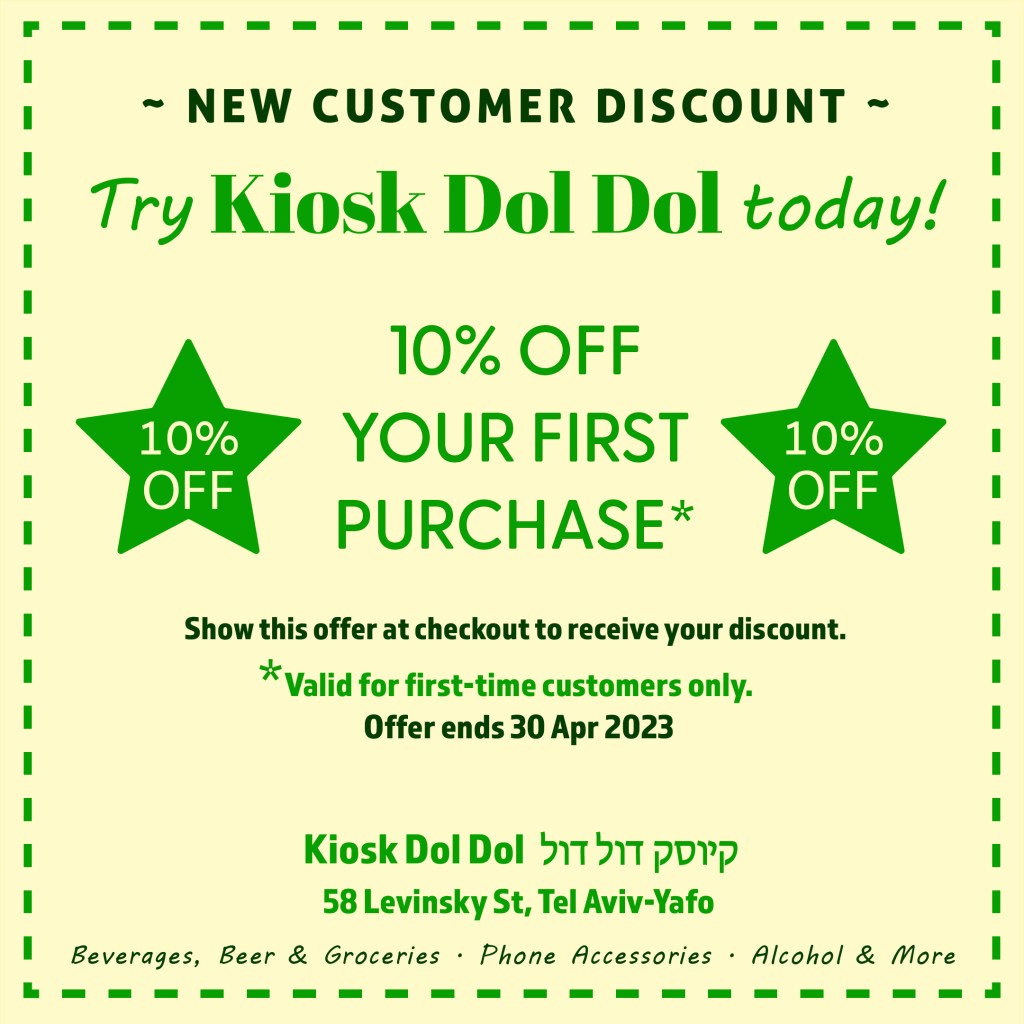
Below are screenshots of how the coupon looked on mobile, from both the Google page’s Overview tab and the Photo section.
New Customer Coupon Test
The coupon was visible in the Photos section of the Google page for 1 month without anyone redeeming it.
I deleted the photo of the coupon after the 1 month past.
I then taught the business owner how to post an Offer on Google, and together we uploaded the coupon as an Offer titled “NEW CUSTOMER – 10% OFF”. The coupon was valid for 1 month.
After posting the offer, I noticed that Google markets the offer in different areas of the Google page, and adds a section for Offers when a potential customer scrolls further down the Google page.
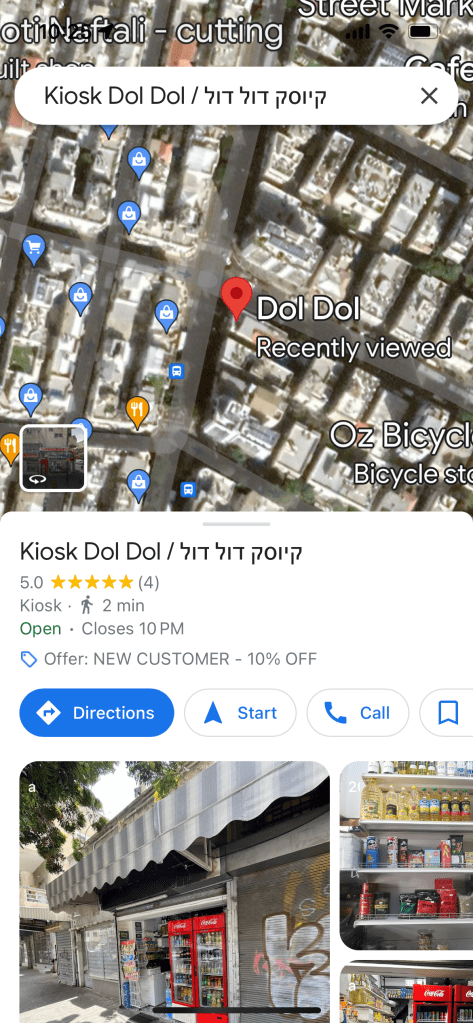
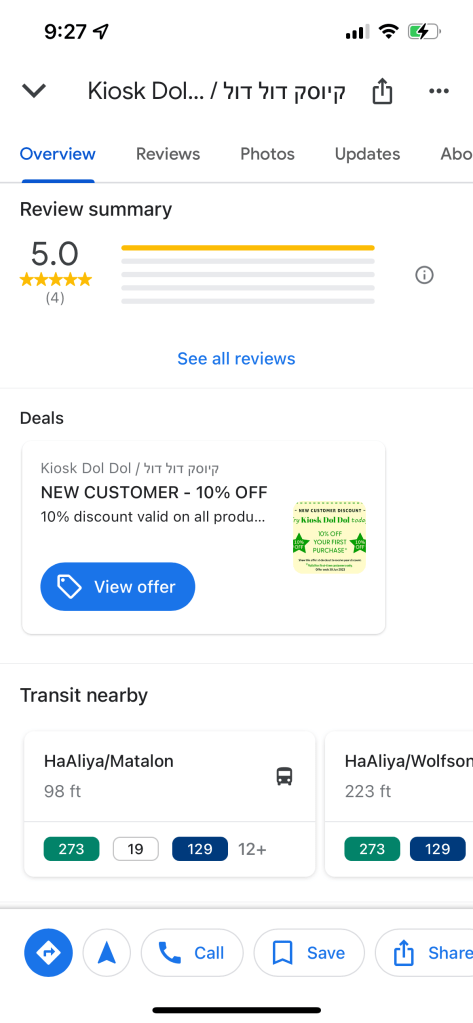
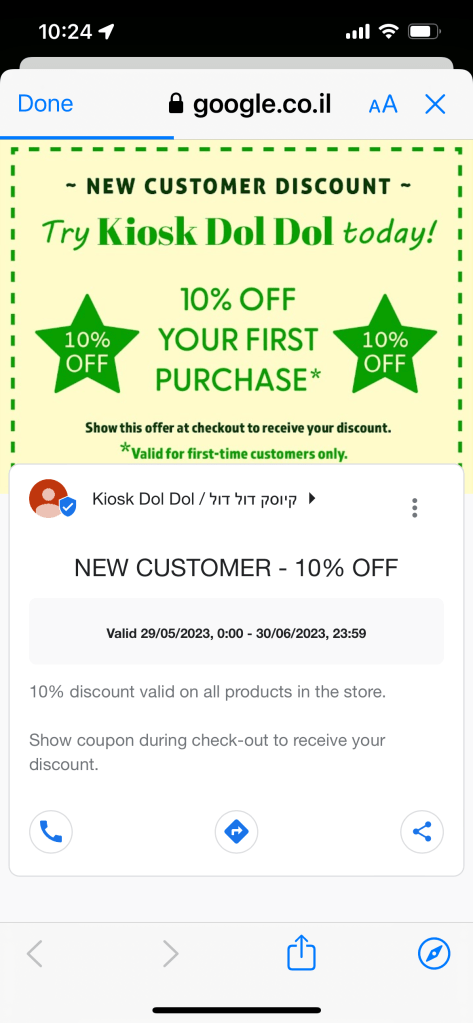
It’s interesting to note that Google calls this section “Deals” when prospective customers view the page.
In conclusion, if uploading the coupon as an Offer doesn’t create conversions, I will ask the business owner if he wants to increase the discount presented to new customers.
Product Inventory
I created an inventory of the kiosk’s products to make it easier to create product and price labels. The business owner can also use this inventory to add new products, mark products as TOS (temporarily out of stock) and track expiration dates of grocery products.
Product and Price Labels
I installed product and price labels so customers can know the price easier and so employees don’t have to put as many price stickers.
Thanks for viewing my case study!
If you’d like help marketing your local business, contact me to get started.
 Shomari Barber