Are you a local business owner who wants to get customers from Google?
This blog post will show you how to create your Google Maps business page on your phone.
If you already have a Google Maps business page but don’t have management access, you can read my blog post on how to claim ownership of your Google Maps business page.
Benefits of Google Maps for local business
Google Maps is great for getting new customers because people often search Maps when they’re looking for a new business in their area.
Google Maps is different than marketing your business on social media, because people on Google Maps are actively looking for a business, whereas on social media people are usually engaging with friends or viewing entertaining content.
To create a Google Maps page on your phone:
For this blog post, let’s pretend we’ve have recently opened a new bowling alley with the following information:
Business name: Joe’s Bowling
Business category: Bowling alley
Business address: 2016 Lee Ave, Granite City, IL 62040, USA
STEP 1 – Open the Google Maps app
Open the Google Maps app on your Phone.

You will see the map view below.
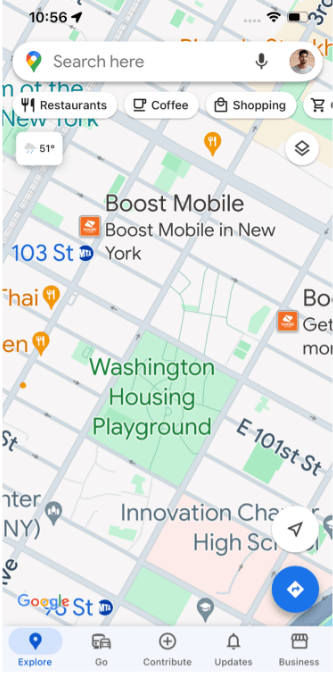
Most phones come with Google Maps already downloaded. If it’s not on your phone, you can download it for free on the App Store or Google Play.
STEP 2 – Confirm the correct Google account
Tap the circle icon at the top right of the screen to make sure you’re signed into the Google Account you want to manage your Maps page with.
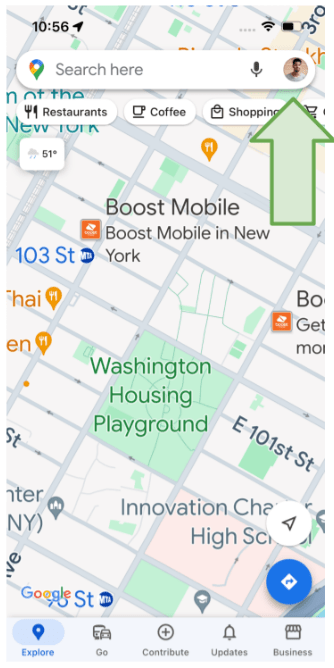
The screen below will appear. You can check you are signed into the correct Gmail, and can change your email by clicking anywhere inside the green highlighted area.

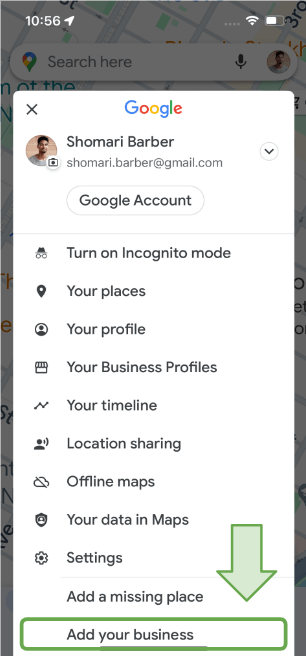
STEP 3 – Tap “Add your business“
On the same screen you confirmed you are signed into the correct Gmail, tap the Add your business button at the bottom of the screen. Sometimes, you will only see “Add a missing place”, which you can click on. The adding your business button will be on the following screen.
STEP 4 – Enter your Business Name and Category
Next, you will see a screen to create your Google Maps business page. Google calls it a Google Business Profile. I call it a “page” in this blog post.
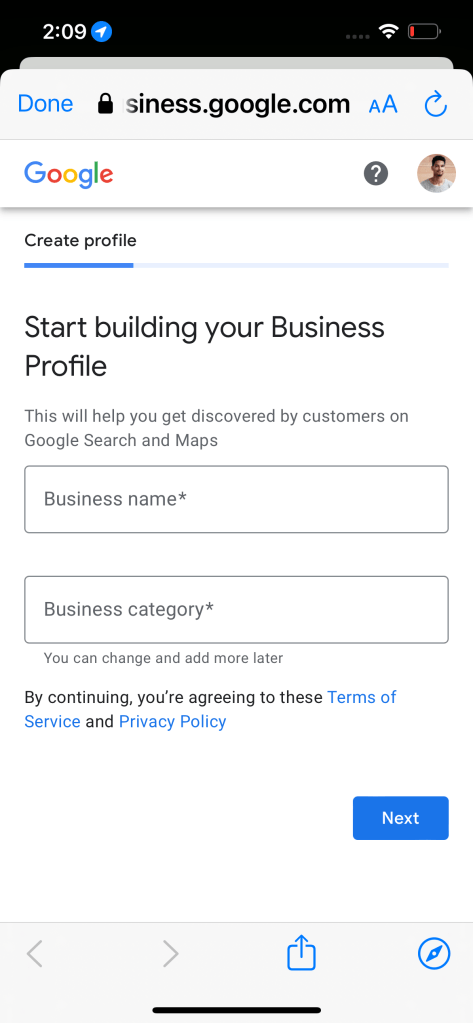
STEP 5 – Tap “Create a business with this name”
Enter your Business name as you would like it to appear on Google Maps, and tap the Create a business with this name button in the suggestion list that appears.
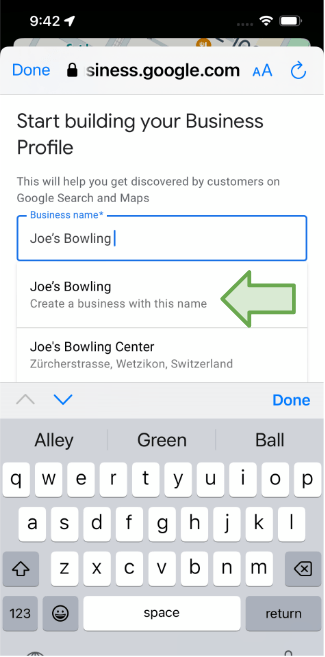
STEP 6 – Select your Business category from the suggestion list
Start typing the Business category that best describes your business, select your Business category from the suggestion list, and tap Next.
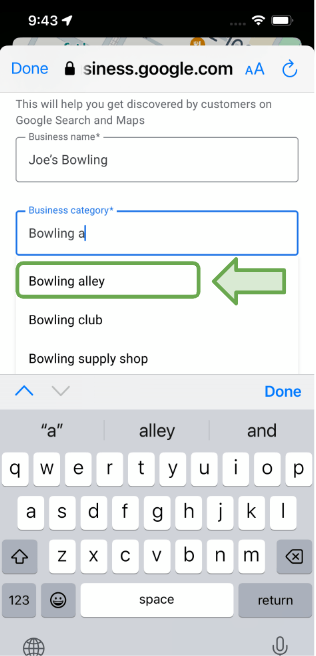
STEP 7 – Choose to add an address
Select whether you want to add a location customers can visit. For a bowling alley, we will select Yes and tap Next to continue.
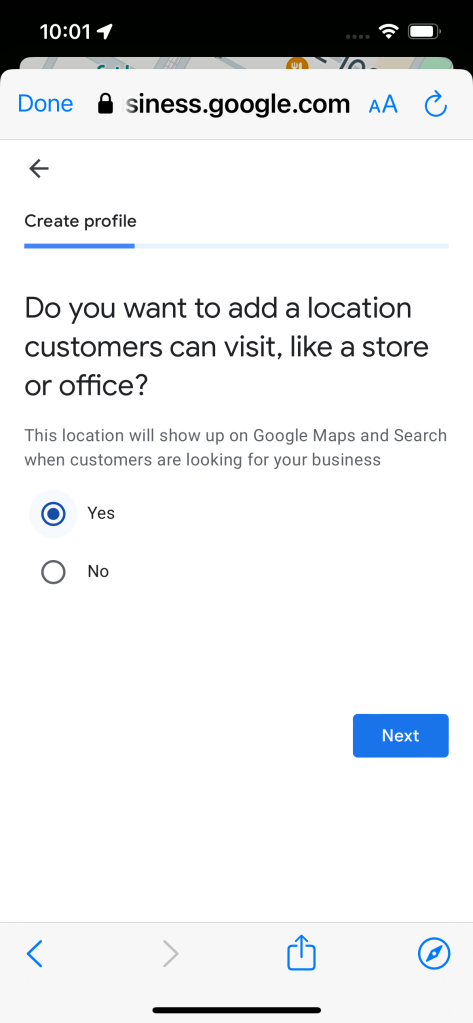
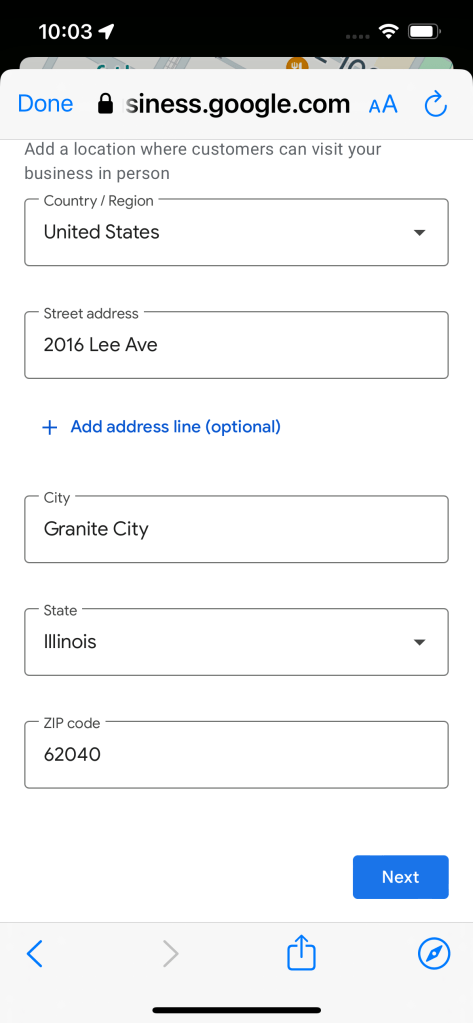
STEP 8 – Enter your business address
Enter your business address, including your Street address, City, State and Zip code (Postal code). Entering your Postal code is optional.
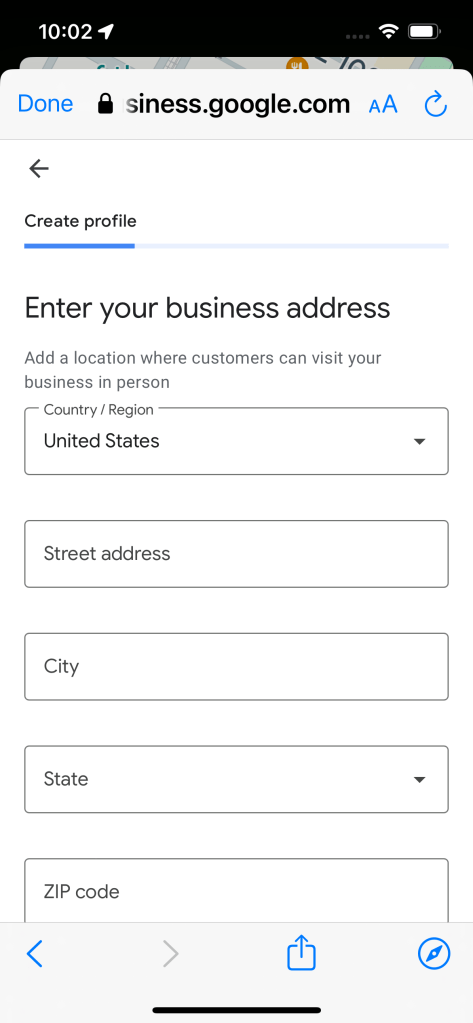
After entering your address information, scroll down and tap Next.
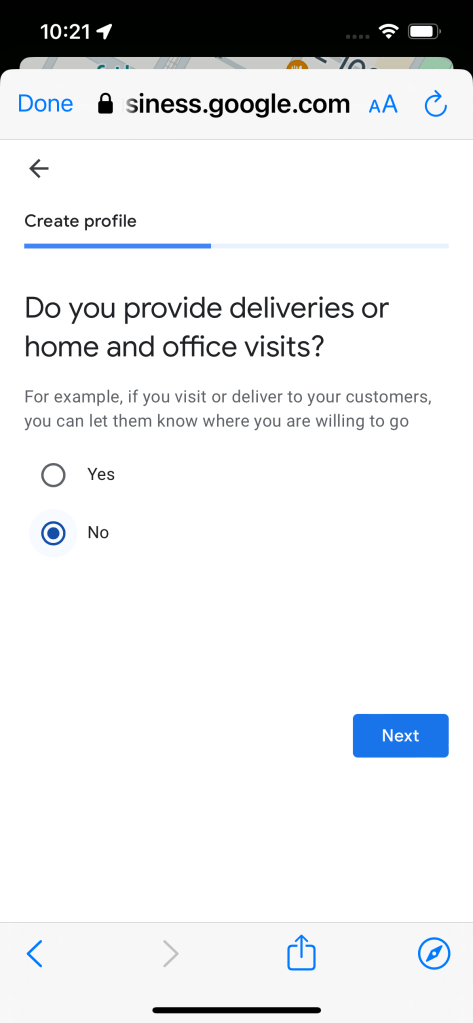
STEP 9 – Choose to offer delivery
Select Yes if you offer delivery of your products or are a business that travels to complete services.
We’ll select No for our bowling alley and tap Next.
You can always change this at a later time.
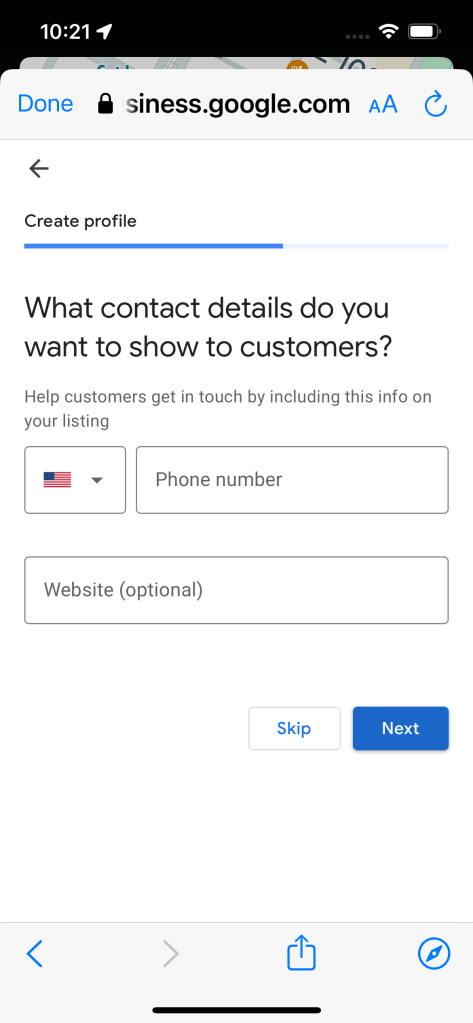
STEP 10 – Add contact details
If you want your phone number and website visible on your Google Maps page, you can enter them below. I don’t recommend adding your website until after you have verified your page.
After you create your page, it won’t be visible to customers until you verify your page. I recommend adding your phone number to make the verification process easier. You can always remove your phone number after verifying your page.
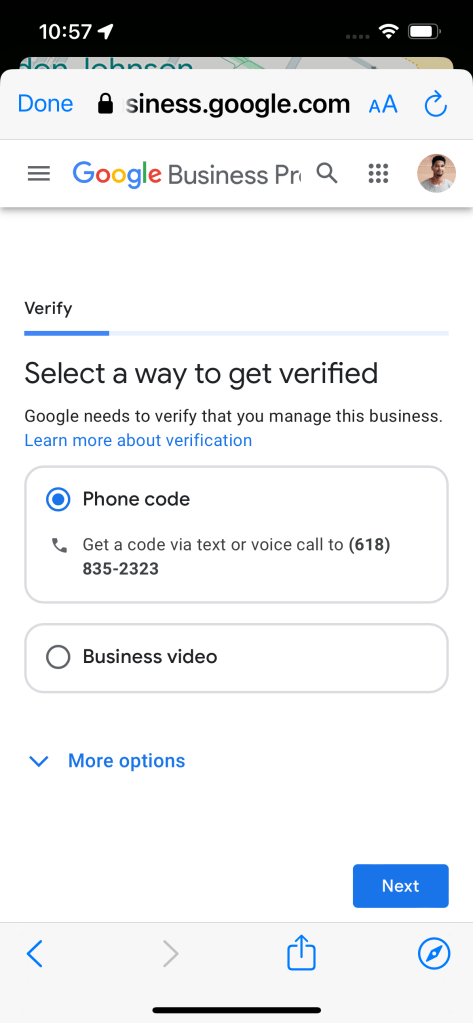
STEP 11a – Verify your page with a phone code
If you enter your phone number, you can verify your page with a code Google sends to your phone.
After selecting Phone code, tap Next.
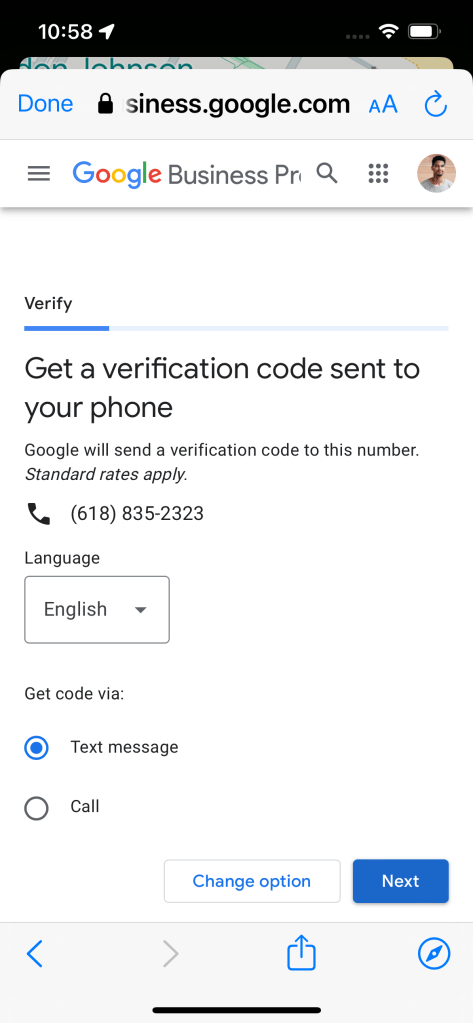
Choose whether you want the verification code sent to your phone by Text message or Phone call, and tap Next to complete the verification process.
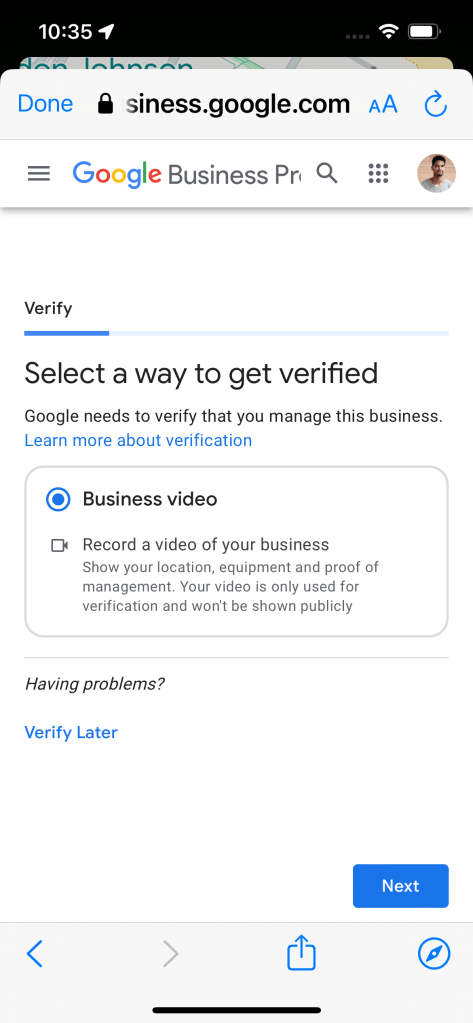
STEP 11b – Verify your page with a business video
If you don’t enter your phone number, you will be asked to record a 1-2 minute video of your business as proof of ownership.
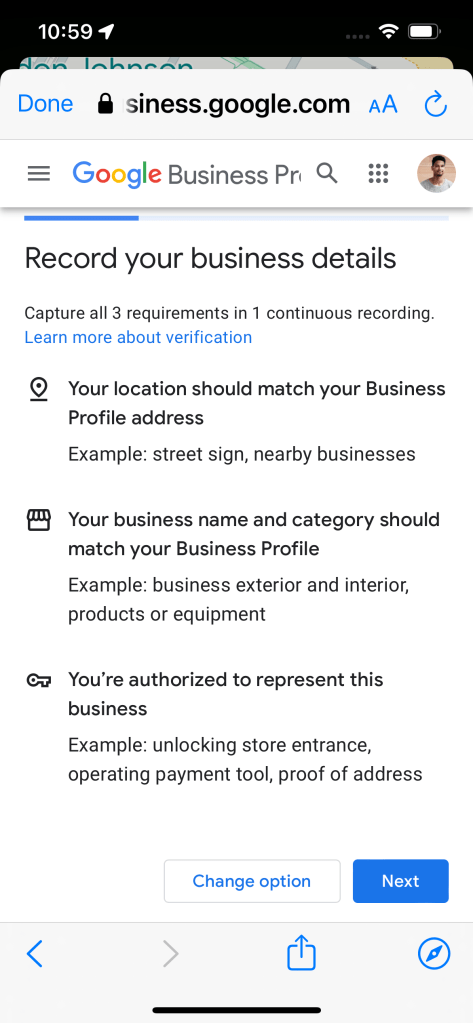
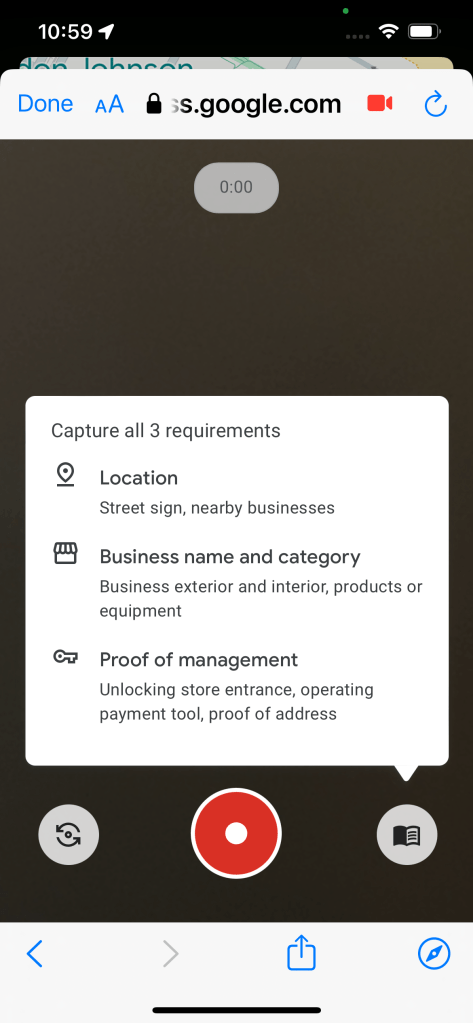
What to include in your business video (the more the better):
- Street sign, nearby businesses
- Business exterior and interior
- Products and/or equipment
- Unlocking/locking business entrance
- Operating cash register/payment tool
- Business document (i.e. bill, mail) containing proof of address, without sensitive information
Tips to make sure your business video will be accepted by Google:
- Start the video outside the business before moving inside
- 1-2 minutes is an ideal video length
- Try not to include people’s faces in the video
- Videos longer than 5 minutes won’t be accepted
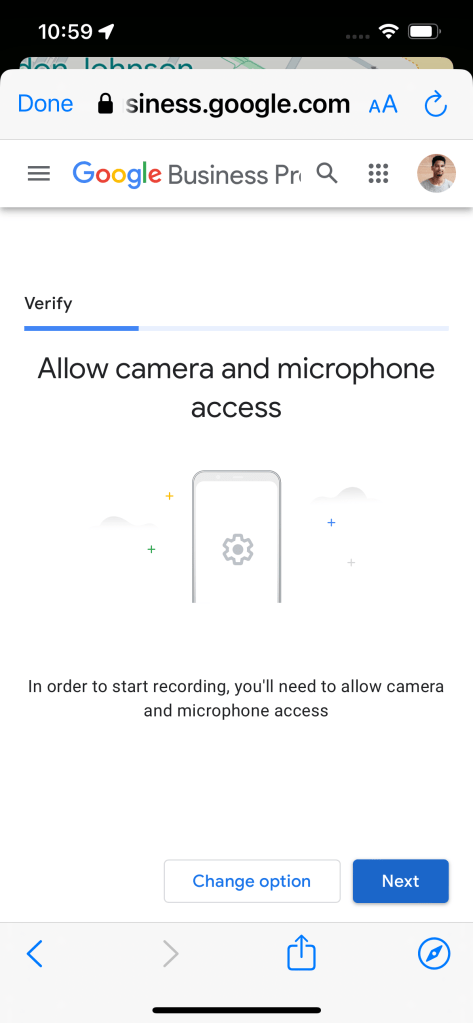
To record your business video, you need to allow Google Maps to access your Camera and Microphone.
To allow Google Maps to access your Camera and Microphone, Tap Next.
Or you can tap Change option to verify by text or phone call (Step 11a).
Next, tap Allow to let Google Maps to access your Camera and Microphone.
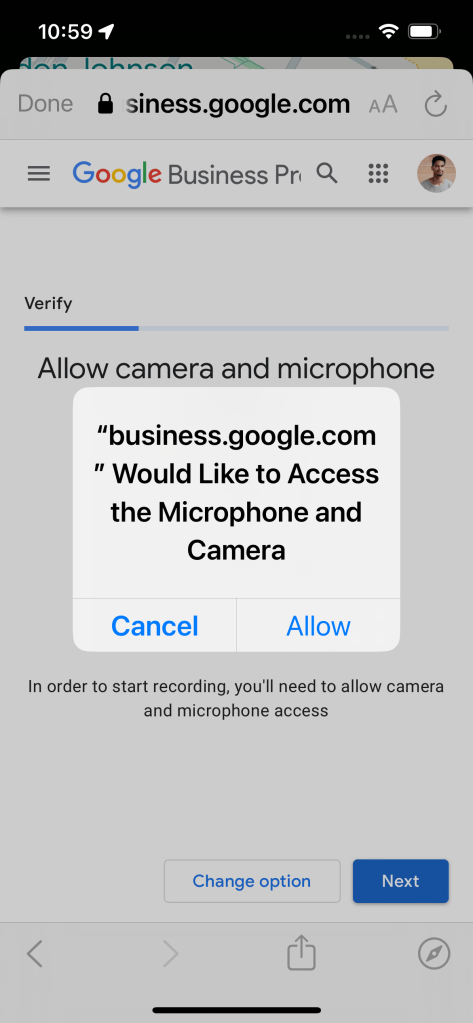
Depending on your phone, you may have to allow access in Settings.
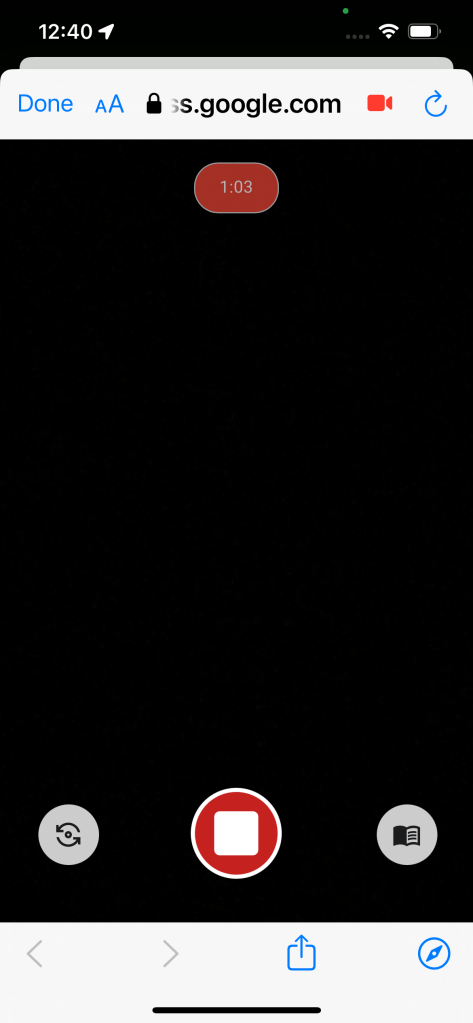
Tap the red button to begin recording your video (left screen), and again when you have completed (right screen):
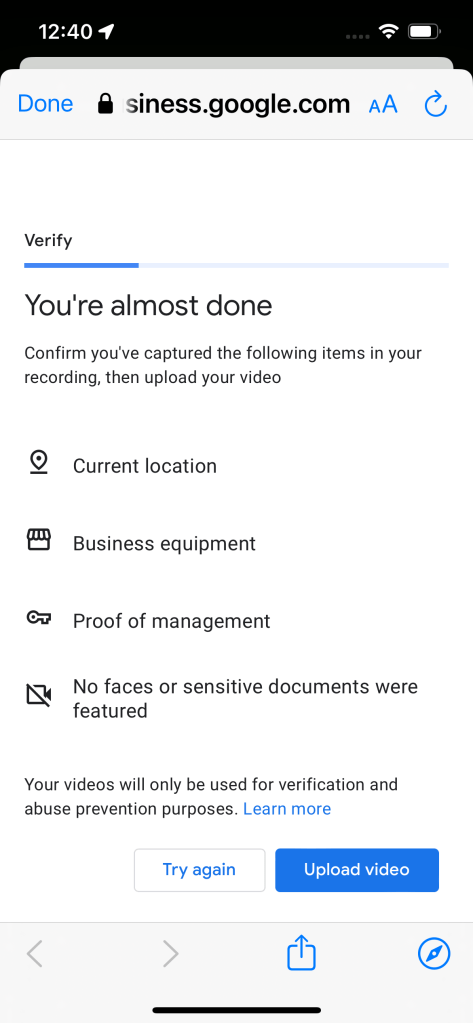
After you finish recording your business video, you’ll be shown the screen below to confirm you have captured the elements needed for verification.
When you have confirmed the elements needed, tap Upload video.
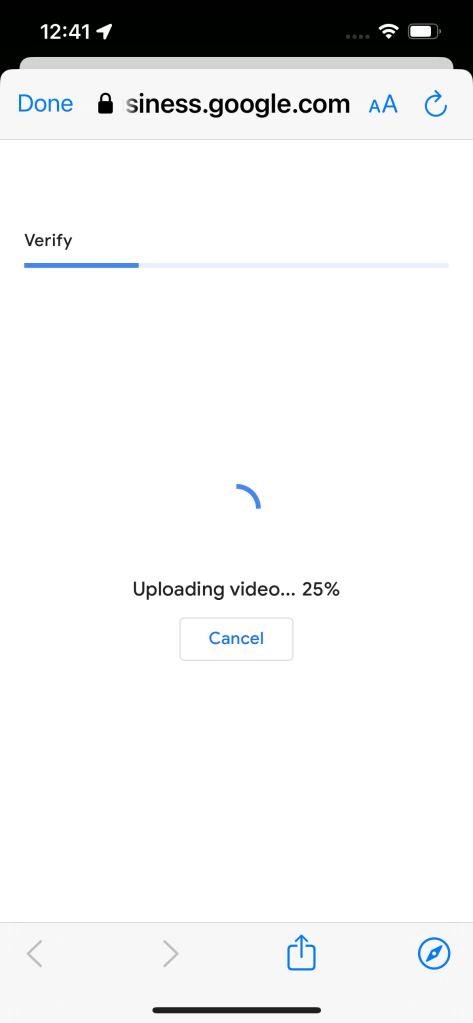
It will take a few minutes for the video to upload to Google for review.
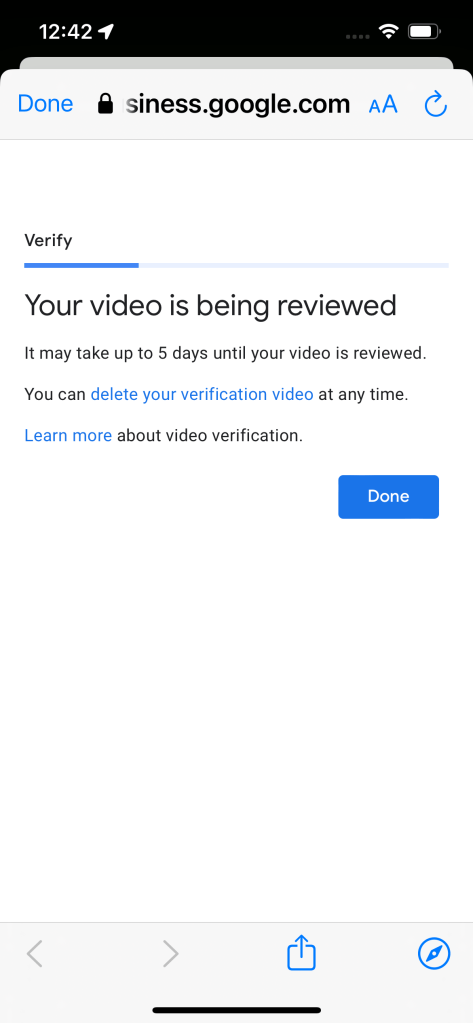
Google may take up to 5 days to review your video.
STEP 12 – Wait for an email from Google
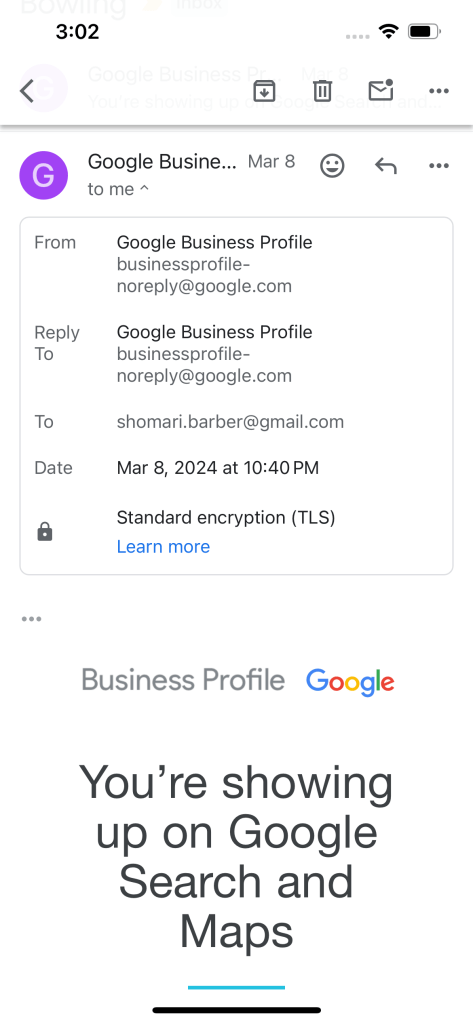
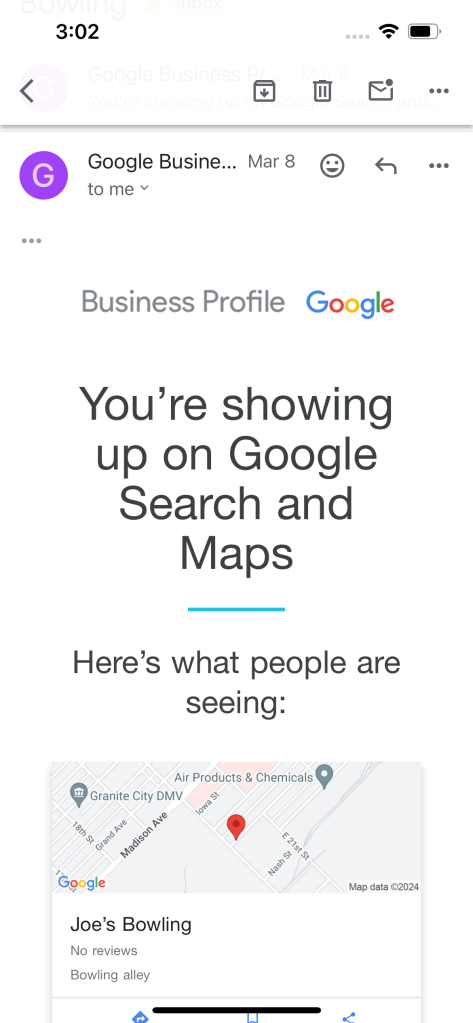
Once your Google Maps page is verified, you will receive an email from Google Business Profile (business-profile-noreply@google.com) saying “You’re showing up on Google Search and Maps” (left screen)
Scrolling down in the email will show our Business Name and Business Category (right screen)
My name is Shomari Barber. I help businesses grow with Google Maps.
I hope you found this blog post helpful.
If you have any questions, or would like me to help you grow your small business on Google Maps, feel free to contact me.
 Shomari Barber