
Are you a local business owner who has a Google Maps page but don’t know how to claim ownership of it?
This blog post will explain how to claim your Google Maps business page on your Phone or Laptop in 7 simple steps.
Benefits of claiming your Google Maps business page: Claiming ownership of your Google Maps page allows you access to management features like updating business info, adding photos and your logo, creating a menu or catalog of products, replying to reviews and more.
Claiming your Maps page will also rank you higher in local Google search because you’re telling Google’s search algorithm you’re an active business.
To claim your Google Maps page (Phone):
For this blog post, let’s say we’re the owner of a business with the following information:
Business name: Asunan Deli
Business address: 1665 Lexington Ave, New York, NY 10029
STEP 1 – Open the Google Maps app
Open the Google Maps app on your Phone. 
You will see the map view below.
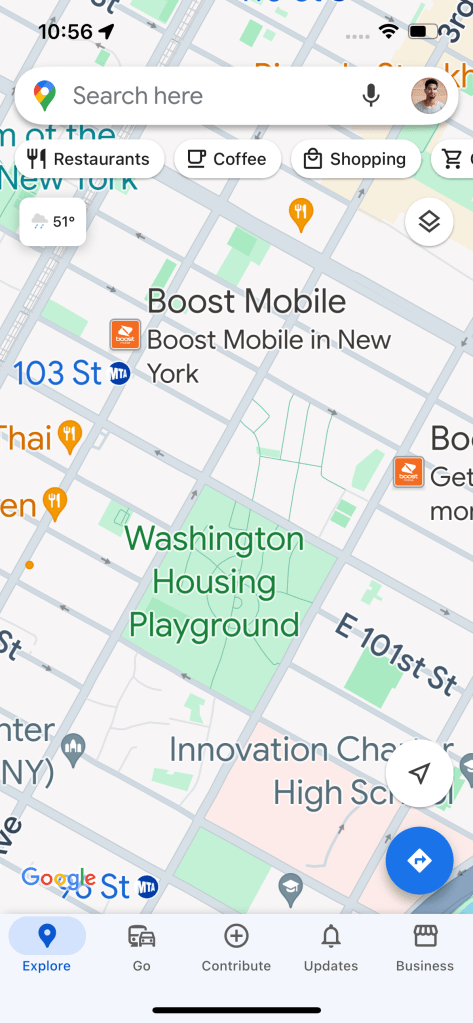
Most phones come with Google Maps already downloaded. If it’s not on your phone, you can download it for free on the App Store or Google Play.
STEP 2 – Confirm the correct Google account
Tap the circle icon at the top right of the screen to make sure you’re signed into the Google Account you want to manage your Maps page with.
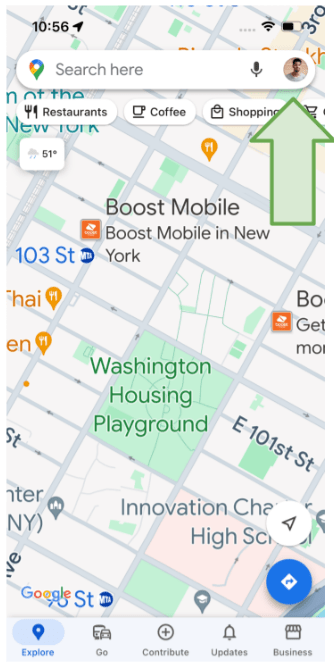
The screen below will appear. You can check if your Gmail is correct, or change it by clicking anywhere inside the green highlight circle area.

STEP 3 – Find your Google Maps page
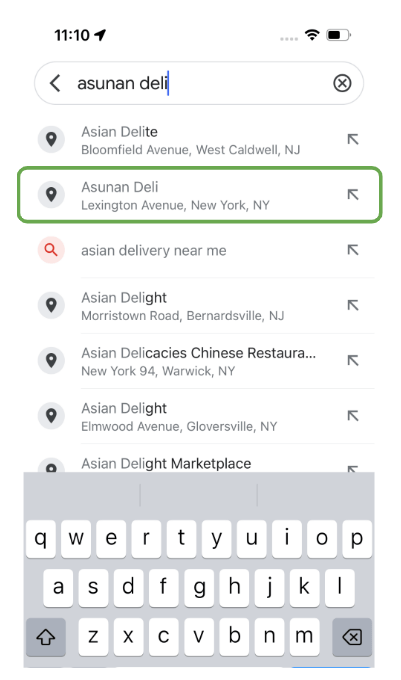
Search “Asunan Deli” and select the listing with your business address:
STEP 4
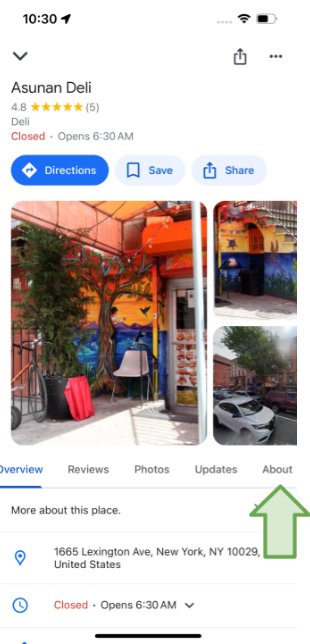
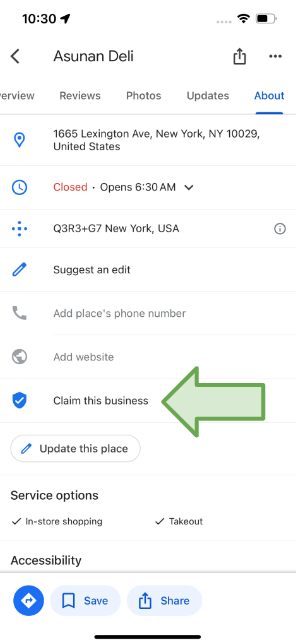
Tap the About tab:
STEP 5
Tap Claim this business:
STEP 6
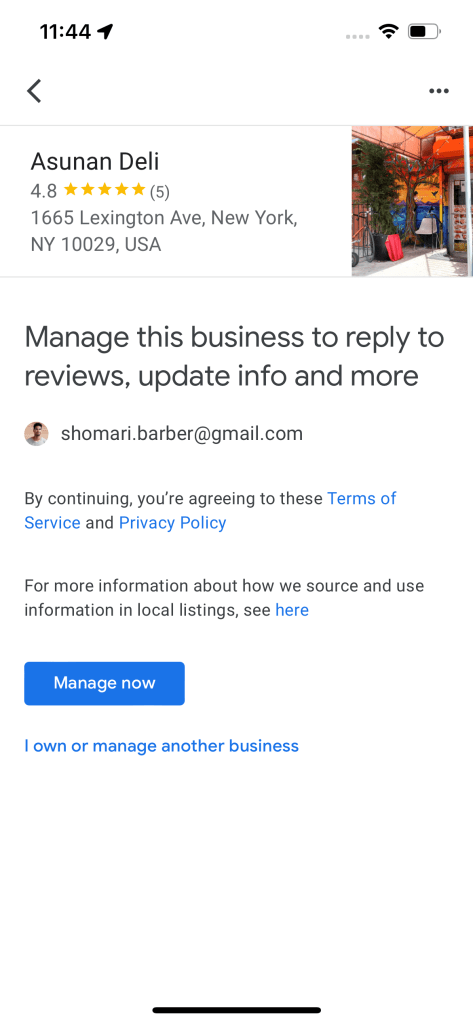
Tap Manage now:
STEP 7
If you have your phone number on the Google Maps page, you’ll be required to complete a verification process where you can choose to have an text message or phone call sending you a verification code to become the Primary Owner and Manager of your Google Maps.
If you don’t have your phone number on the Google Maps page, there shouldn’t be a verification process. You should become the Primary Owner and Manager of your Google Maps page right away.
In some cases you may have to provide a 1-2 minute video of the business as proof of ownership.
To claim your Google Maps page (Laptop):
Business name: Asunan Deli
STEP 1
Open the Google Chrome browser on your Laptop or Desktop computer
STEP 2
Make sure you’re signed into the Google Account you want to manage your Google Map business page
STEP 3
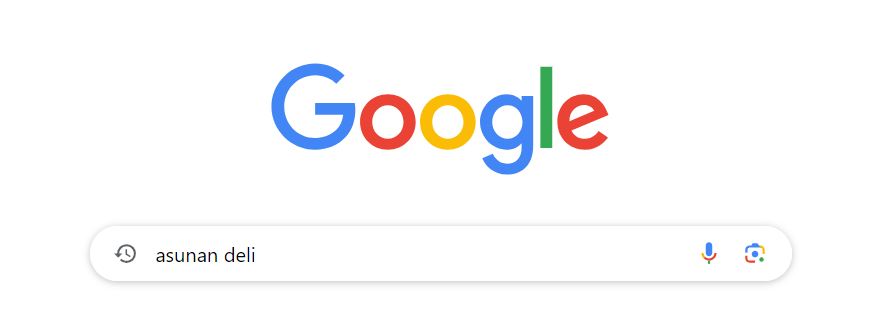
Google “Asunan Deli”
STEP 4
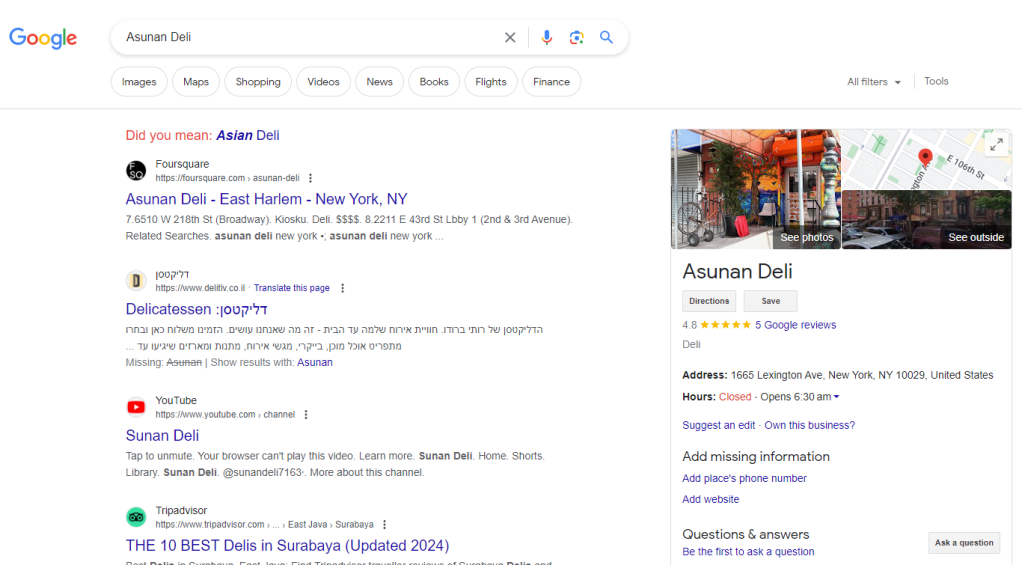
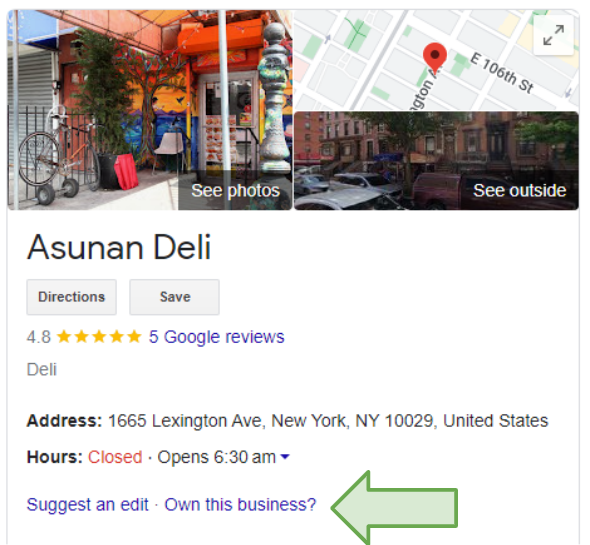
The right side of the screen below is your Google Maps business page.
STEP 5
Click Own this business:
STEP 6
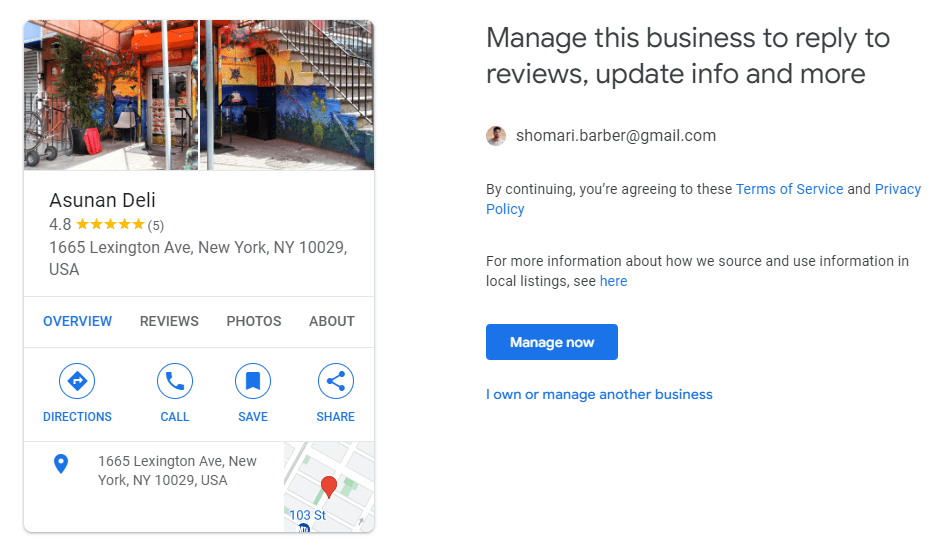
Click Manage now:
STEP 7
If your phone number is on Google Maps, you will have to verify the page with a verification code sent by text or call to your phone.
If your phone number is NOT on Google Maps, you will most likely have to record a 1-2 minute video of the business as proof of ownership.
My name is Shomari Barber. I help businesses grow with Google Maps. I hope you found this blog post helpful.
If you would like help marketing your local business on Google Maps, feel free to reach out on my contact page.
 Shomari Barber